a_masters
-
Posts
51 -
Joined
-
Last visited
Content Type
Forums
News
20th
EduGeek EDIT Conference
Blogs
Everything posted by a_masters
-
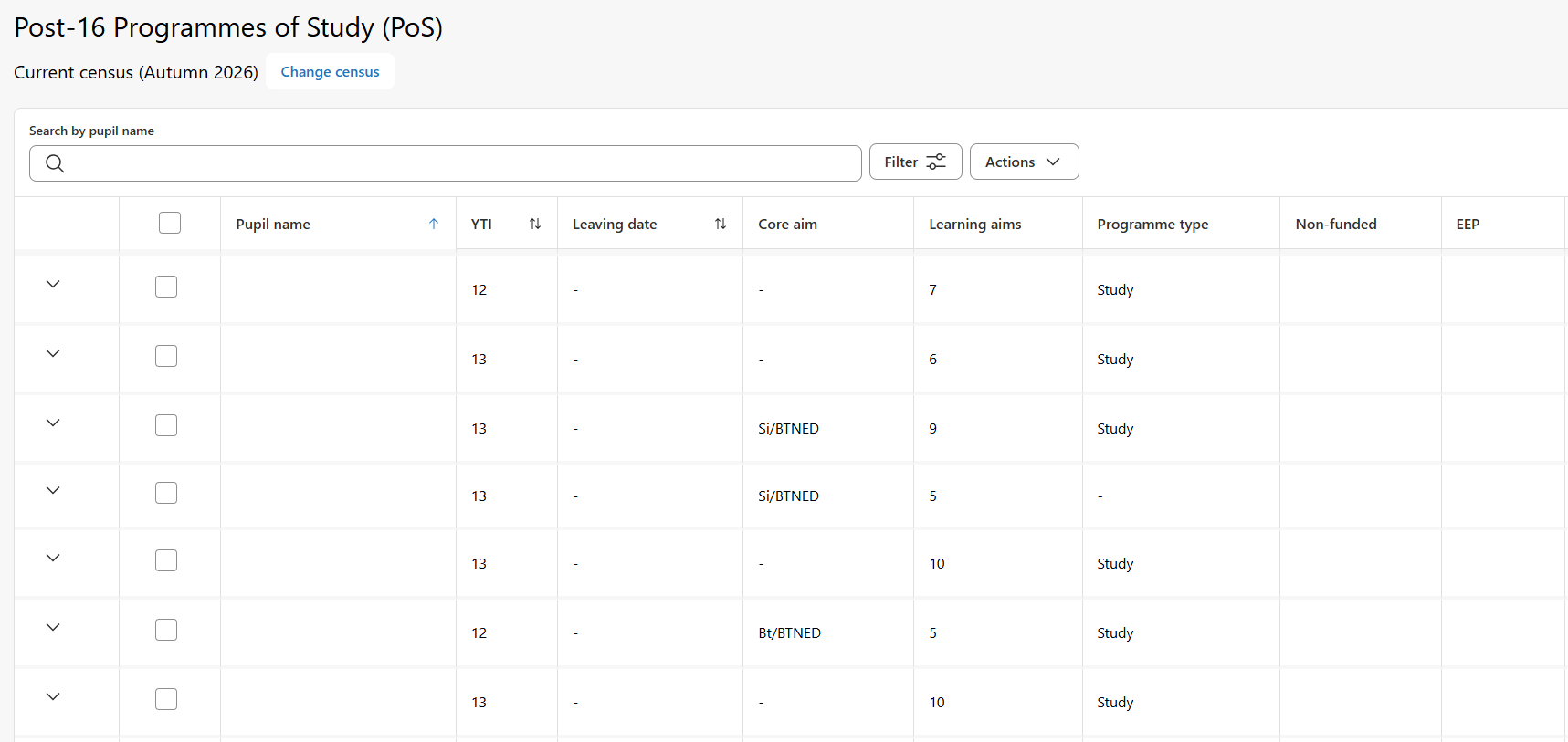
I've got errors in SIMS 7 that I don't have in Next Gen, errors in Next Gen that I don't have in SIMS 7. Bits that can only be updated in SIMS 7, bits that I can fix in Next Gen, but they've made it as hard as possible. Who signed off on the P16 Programmes of Study as being usable? The only way I can find to get a student's name to appear in the Pupil name column is to search for a student and have just their record.

-
SIMS setup a report to get attendance for a subject
a_masters replied to martyn_wheeler's topic in MIS Systems
Have you looked at Reports > Lesson Monitor > Whole Group Student Reports > Lesson Attendance by Classes? Looks to be what you're after, but not in the most friendly table. I've achieved similar by pulling out ALL attendance marks for a time period and calculating it myself, but that might be overkill! -
Us too...
-
I've had access to the new support portal since they launched it, but today everything I click on just gives me a page not found and a game of Breakout. Is it just me? 🤨
-
I think that's the issue, example below.
-
When do you get that error? Do you have a screenshot of the science block(s) - I assume CB is a science teacher?
-
Is that 9 periods? Setting the session to N should do it?
-
Sent you an email, ignore my message above, I was making it too complicated, it's straight forward and the SIMS side of things is easy.
-
We do something similar but with science - added complication of triple science/combined science but it ends up with combined science all on at the same time and at various points students are out doing PE. The SIMS class lists side of thing can then be a bit tricky. Send me your email and I'll fire you over some screenshots when I get a sec.
-
Yes - give the grade a description and then in the report pull out result description rather than result. We have A/E/T for above, expected, towards and it pulls through into the report as something a bit more descriptive.
-
Tick them when creating the filter
-
I have similar issues with photos rotating when uploaded into SIMS and have to open/save them. Assumed it was to do with EXIF data, presumably this would solve that issue too.
-
Right-click, edit room.
-
How do you send your assessment reports (electronic) home?
a_masters replied to spkay's topic in MIS Systems
Iris Reach to do the same as above.- 13 replies
-
- 1
-

-
- assessment
- intouch
- (and 2 more)
-
You need to build your blocks by adding all the pending sessions. Generally you work across the top in order, so you'd do the block screen before the bands screen. Not always the case and I tend to flick between the Block and Bands screens quite often, sometimes getting a block in place before adding the lessons to it.
-
Get your exam classes (and trickiest classes in terms of flexibility) in first, build the rest round them. Avoid Auto. Don't be afraid to wipe hours of work to approach things from a different angle.
-
[sims] NOVA-T - Scheduling a class with students in both Y12 and Y13
a_masters replied to DavidS's topic in MIS Systems
You can force a clash - we have Y12 and Y13 art scheduled at the same time with the same teacher this way, means two separate registers though. -
Presumably, expand Count Summary and include the No. columns field.
-
Amazing - the amount of times I've had to tweak code in a template, change the template in the report, run it again, change some more code, edit the report again etc. Thank you!
-
We actually have something similar in place at the moment, timetable-wise, where students come out of one double maths a week for further maths. Looking at it, it looks like someone's been through and removed them from the maths class during the same period, as it will come up as a clash in their timetables otherwise and they'd appear on both registers. So might not work in bulk!
-
Any reason why you can't add it as an additional class in whatever block is on during that period? Can then assign in bulk via student curriculum.
-
[sims] How to create a report with results and classes
a_masters replied to Pollock's topic in MIS Systems
That was my alternative, but generally like the data out of SIMS as quickly and painlessly as possible -
[sims] How to create a report with results and classes
a_masters replied to Pollock's topic in MIS Systems
Not sure you can from SIMS nicely. I would break it down and export things separately and then pull it all together in Excel. I'd do it in two chunks - a report to pull out the first 5 columns and then a marksheet with all the students' current grades and target grades, using a lookup to pull the grades from the marksheet. -
Model screen. Ctrl and right-click on the class to remove. It tells you the class code bottom-right of the window.
- 1 reply
-
- 1
-
-
Moving a single lesson for one subject within a block.
a_masters replied to DavidS's topic in MIS Systems
No, that's quite right, but you can't move it within the block as it stands. 2 solutions, but your best one is probably: On the Model screen for that block, right-click and change the minimum periods to be 1 more than you need. When you go back to the Block screen for that block, there should be an extra period at the bottom that isn't in the timetable. Move the lesson you want to move into that. You can then grab that period by dragging the blue box for that period and place it into the timetable far left. You'll then get a warning similar to below. Put a tick in the Lock/Clash box and it'll clash those 2 periods together. You can tidy it up to stop other lessons going into the clashed slot/leave yourself a reminder that that period is clashed by right-clicking all the empty slots for that period and selecting Protect Empty Slot.