scottpowers82
-
Posts
69 -
Joined
-
Last visited
Content Type
Forums
News
20th
EduGeek EDIT Conference
Blogs
Everything posted by scottpowers82
-
Hello, We recently upgraded our physical network infrastructure from Cisco Switches to Aruba S2500 switches. Now, this has upgraded us so that most of our network is now a full 1Gbps from the server to the workstation. However, I have noticed that when I try and image a machine (using WDS with MDT here...soon SCCM once I have some other problems figured out), the progress bar gets stuck at 5% and doesn't finish downloading the image. Also, I have noticed systems taking longer to PXE boot whereas it used to take maybe a few seconds to get the PXE response, it now seems to take at least 30 seconds or more. In fact, I have even had some systems NOT be able to receive the PXE response at all. I know it is probably something simple that we have to enable on the new Aruba switches, but don't know what setting it would be (plus, trying to learn Aruba's OS). Anyone have any ideas? Thanks in Advance, Scott
-
SCCM 2012 - Apps Stuck at "Downloading 0% Complete"
scottpowers82 replied to scottpowers82's topic in Enterprise Software
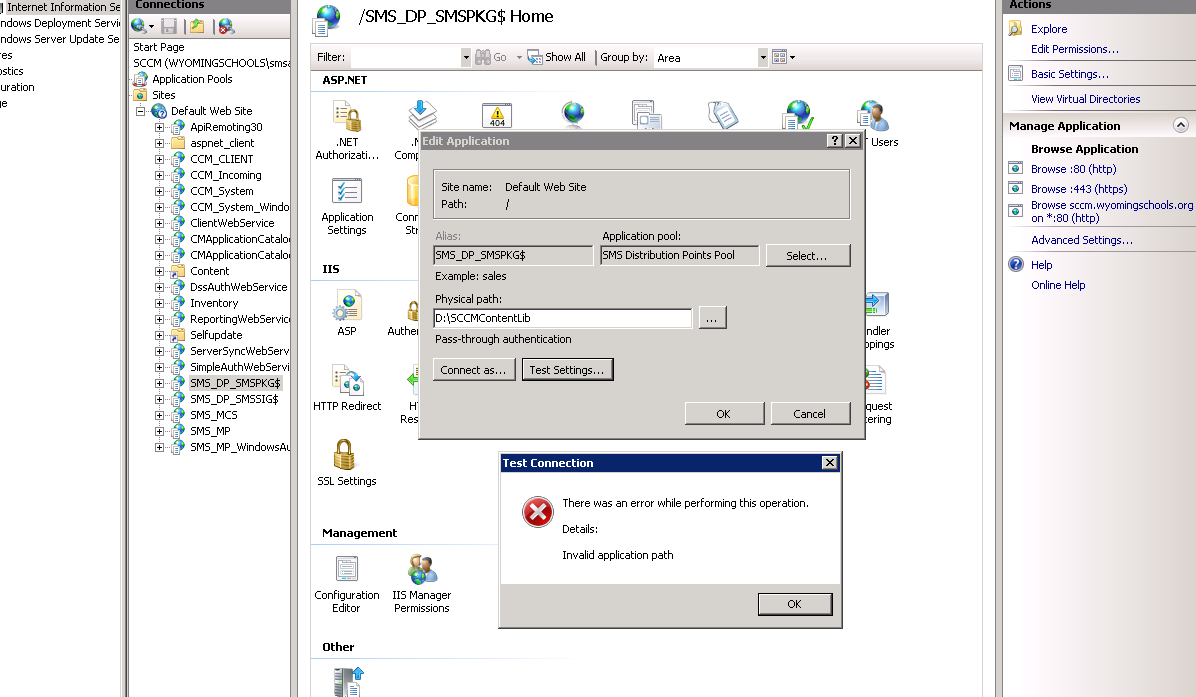
OK, so I have now re installed my DP role and redistributed all of my content. Everything seems to look OK now in the Distribution Point Configuration Status (All is Green!). However, I am still unable to download most of my content to the client. I am definitely leaning towards it being an IIS/WebDAV problem, but have not had much, if any, expierence with IIS (other than maybe a simple FTP server). When I check under the IIS Manager and check the Basic Settings of my SMS_DP_SMSPKG$, my physical path seems to be correct. However, when I click on Test Settings, I get the error Invalid Application Path. Anyone have any ideas out there? Thanks in advance... -
SCCM 2012 - Apps Stuck at "Downloading 0% Complete"
scottpowers82 replied to scottpowers82's topic in Enterprise Software
OK, I don't think it has anything to do with the fact that my content is coming up as failed. After going into the properties of my DP, I went into the Content tab and actually removed some apps that were coming up as failed. I then Distributed them again and they finally come back as green! I thought my problem may be fixed and they I can just remove/re-add them, but when I went to my test machine and tried to install an app (that is now green finally), it still shows as Downloading 0% complete. Bummer -
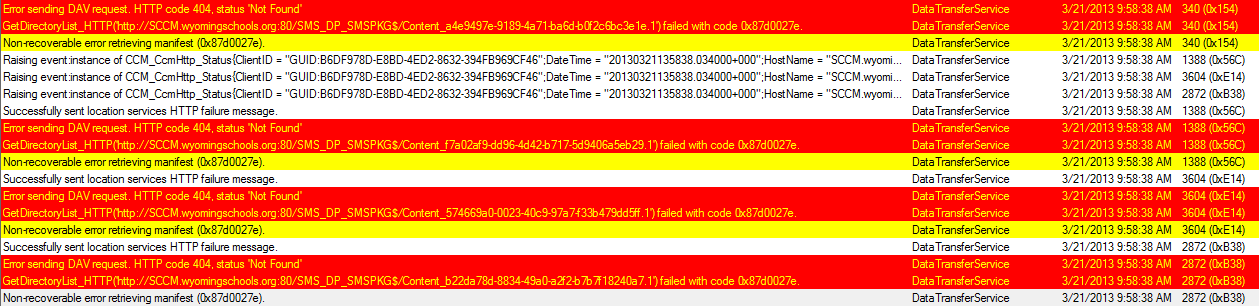
Hello, I have been trying to figure out this problem now for the last couple days and am tearing my hair out (what's left anyway) trying to figure this out. There's a couple parts to this problem, so bear with me. When I had initially created our SCCM 2012 server (virtual server running on an ESX 5 Host), I had made our C: drive a little too small and because of the way that the D: drive was setup (where most of the SCCM data resides), I was unable to easily expand the C: Drive without wiping out the D: drive (due to the partition table). Within the past week, I noticed that apps that we had deployed (which have been working fine for months) were no longer downloading to the clients and showed "% Downloading in the Software Center (as shown in the image below) When looking at the server, I noticed that the C: Drive was down to less than 1.5GB of available space and thought that that may be the problems as perhaps it couldn't grow a database or something. So, I finally created a new partition on a separate drive to copy everything from the D: Drive (which houses the SCCM Content). After copying everything over to the new drive, I wiped the old D: partition and was able to expand the C: drive! I then changed the new drive to letter D: and also changed the name of it so that it reflected the same name as before. So, it appeared that everything should be working. However, I still can not get apps to download onto client computers. After doing some research online and looking through many log files, I think my problem is related to IIS from the error message I was getting on the client as shown below: Now, I am nowhere near an IIS expert and am having some problems figuring out my problems from this point. If I go into IIS on the server, I can see the my SMS_DP_SMSPKG$ under the default website, but when I click on Basic Settings and click Test Settings, I get an error saying "Invalid Application Path" as shown below: In addition, I have noticed that not all of my apps seem to be getting to my one and only DP correctly. Many of the apps that have been deployed for months suddenly show up as Failed under the Content Status tab of the app. Upon further looking into it, I saw that nearly HALF of my apps now display as being failed. I have tried to ReDistribute the content of the apps, but just keep getting the same thing. In fact, some are even stuck on the "In Progress" phase. I know these apps have at least one point worked because they have gone out to over 1000 PCs successfully. Only recently has this problem come up. I am able to to get to the shares (both normal and hidden) from a client computer, so they should have access, but I just can't figure this one out. My apologies if anything is unclear as I am still learning things about SCCM and I may be even heading in the complete wrong direction, but I could really use a little help on this one if anyone has experienced a similar problem. EDIT: I just noticed that some of my apps actually do in fact work! For example, I was showing my boss about how half of my apps come up as Content Failed (Under the Distribution Point Configuration Status page) and that of the 74 on there, 31 have failed. So, I went ahead and tried to deploy one of the apps that still shows its Content Status as Success to my test machine. It worked! So, tell me why half of them would fail and the other half would work with no apparent changes having been made? Thanks in Advance, Scott

-
I also would like to hear more about a resolution to this as well. I would love to have a script that runs on every machine here in our district that says "If I haven't been shut down in X days, I'll go ahead and restart tonight @ 5PM" But also inform the user in case they are logged on so as not to mess up our users while they are using the system.
-
Ok, so here is what I want to do. I currently have all of my staff mapped to a share (using their Home Drive setting in AD) on our old NAS called \\wyom-data\staff\%USERNAME%. We recently purchased a SAN over the Summer and most of the student files reside there. However, I would like to begin moving teachers over to the SAN. But here lies the problem: I want to change the structure of their folders for redirection purposes. Currently, Folder Redirection is set as follows: Desktop: Assigned by group using the Advanced settings with the path being \\wyom-data\staff\%USERNAME%\Desktop Documents: Assigned by group as well, but all paths are %HOMESHARE%%HOMEPATH% Downloads: Assigned by groups using the Advanced settings with the path being \\wyom-data\staff\%USERNAME%\Downloads Favorites: Assigned by groups using the Advanced settings with the path being \\wyom-data\staff\%USERNAME%\Favorites Links: Assigned by groups using the Advanced settings with the path being \\wyom-data\staff\%USERNAME%\Links Music: Follows the Documents Folder Pictures: Follows the Documents Folder Searches: Assigned by groups using the Advanced settings with the path being \\wyom-data\staff\%USERNAME%\Searches Start Menu: Assigned by groups using the Advanced settings with the path being \\wyom-data\staff\%USERNAME%\Start Menu Videos: Follows the Documents Folder Now, what I would like to do is to change it so that the Documents folder no longer points to %HOMESHARE%%HOMEPATH% and instead point it to an actual My Documents folder within their profile. This would have two purposes: 1) To hide their Desktop.ini file so that I stop seeing an entire folder of just Documents when browsing the staff folder and 2)So that teachers don’t see so much clutter in their Documents folder (since, at the moment, they see their actual Searches, Start Menu, and all other redirected folders in there). The main problem I see here is that if I make the change to the redirection, how will Windows know what to move from their current HomeDrive into the new My Documents folder? Or would it transfer anything at all? Would I be stuck pretty much manually moving over everyone’s folders to reflect the new structure? Further, I would like to actually cut down on some of the things that we are redirecting as they have not really been useful and, at times, a bit annoying (if not problem causing). I would like to get rid of the Searches, Contacts, and Start Menu redirection and use the local folders instead, but I’m not sure what exactly is going to happen when I change that since we use Offline Files and all the teachers have a copy of their Start Menu in their profile. Will that screw things up if I change that setting to point it locally instead? Lastly, and this may be better for another thread, but what exactly does everyone use for settings up their user permissions in relation to folder redirection? I thought I had everything setup perfectly for our Students (who are on the SAN) and I setup a Staff folder the same as theirs. However, I just learned today that a student can actually get into another’s folder and make changes without really that much work. They can’t just type in the path in Windows Explorer (which is how I had always tested their access in the past), but, apparently, they can create a shortcut to their volume and access other user’s files. So, I was just wondering what everyone uses for their file permissions (both NTFS and Share) as I seemed to have screwed mine up despite reading a decent amount of documentation online before I set it up. Sorry if this has been such a long winded question (longest post on Edugeek for me!). Had trouble putting on paper what I wanted it to say (it’s a bit complicated as you can see if you have read this far…) and it’s been a long week! It may be a little early, but I can’t wait for Summer Thanks in advance for any suggestions or help… Scott
-
My apologies to everyone for not getting back sooner. I had some other projects come up this week that I had to take care of and am just now getting back to this problem. Anyway, I have tried several of the tips provided with no luck. I have already tried to setting the RequireSecuritySignature and EnableSecuritySignature reg keys to 0 (although I haven't tried deleting them yet...will have to give that a shot) and restarted the machine, but no luck. Also, I have tried completely deleting the user's account from Active Directory and any mention of it on the local machine, but the problem still comes back. Every time, I get Folder Redirection errors talking about how "this account is not authorized to log on from this workstation" and, yet, any other account works fine on the computer and her account works fine on every OTHER computer. Anyone else got any ideas because I'm running out of things to try? Again, thanks to all for the help
-
Hello everyone, I'm hoping someone out there can help me out with this because it is kind of a weird one. I have seen a lot of folder redirection problems, but I just can't seem to nail this down. Here's the problem: So a teacher came to me today regarding a document that she had started working on that was emailed to her and she had saved it to the temp folder instead of using the Save As from her email before working on it. Unfortunately, I was not able to find the temp version of the document, but while looking for her file, I noticed that NONE of her folders were redirecting ( I have teachers setup for My Documents, Desktop, Start Menu, etc. redirection) to the server. I had thought it somewhat strange and spend some time trying to figure the problem out until, finally, I decided to go ahead and just reimage the machine. Unfortunately, the reimage did NOT work for her. Now for the stranger part: I can log on to any other computer as her and I have no problem. I can log onto her computer (the one I just reimaged) as a different account and have no problem. So, apparently, the problem exists only with her account and only on this system (which happens to be her teacher assigned one). I have tried unjoining/rejoining the domain with no luck. I thought maybe there might be a DNS issue with the old computer name, so I took if off the domain, renamed, rejoined and still same problem. Fortunately, there are event logs for the folder redirection of which I have posted the images below (FYI, all her folders display a similar/same error. Just showing the 2 different ones that appear). Something to note as well with the second picture is that it is trying to redirect to "%HOMEPATH%\Users\meadort" when really it should only be trying to redirect a user's Documents folder to just "%HOMEPATH%" So, I'm not really sure why it appends the rest of the local path on there as I have never really seen it appear that way when other users have had redirection problems. Any help or advice would be greatly apprecieated as I am running out of ideas. I'm going to ahead though and reimage it one more time today before I leave work to see if that does anything, but I kind of doubt it since it didn't do anything the first time. Thanks in advance!
-
Sorry for the long response. I have our wireless networks setup as a boundary group and assign them the slow connection type. I figured for wireless, it might be better to use slow for bandwidth issues when 30 kids are logging in at the same time. Or is it meant more for WAN type connections? Is wireless fast enough for the fast setting typically?
-
AH HA! Think I may have figured it out. Currently, I have all of our wireless network boundaries set to use a slow connection type. I have the content type for this application set to MSI and (under the Content Tab from the Deployment Type) the deployment option was set to "Do Not Download Content" if using a slow network boundary. I then changed it to "Download content from distribution point and run locally" and that seemed to do the trick on my test machine. I'll keep an eye on it today and, hopefully, I'll see it deploying to the rest of my clients throughout the day. Anyway, just wanted to post the fix in case it helps someone else...
-
Hey Everyone, I have been pulling my hair out trying to figure this problem out as I just can't seem to find the right solution to my problem. So, here's the basic info: - I have setup an SCCM 2012 Server with all of my boundaries (using IP ranges) and boundary groups set. - When I deploy an Application (in this case, I'm trying to deploy a small MSI), it seems to work OK on desktop machines that are hard wired into the network, but when I check the install on a teacher's laptop, it keeps saying that it is downloading, but never moves past 0%. To make matters even more confusing, it does seem to work on a couple machines here or there (for Example, when I deployed my MSI to 127 teacher machines, it installed only to 4%....it is possible they may have been wired in though for some reason...not sure on that one) - Most searches I find for this topic on the internet keep telling me to check the boundaries, but everything seems ok to me that I can see. - If I try it in a VM (which would simulate Hard Wired), it works perfectly. Just not on wireless machines. It's gotta hopefully be something simple, but I just can't figure out the problem for the life of me. I was really hoping to move all our software distribution away from group policy and completely centralize most things I do into SCCM 2012, but this part is definitely holding me back. I just started getting into SCCM this past Summer, so I'm still a noob when it comes to it and may be missing something obvoius (I can only hope), but I would really appreciate any advice anyone can give me. Thanks
-
Try adding the SCCM server's computer account to the local administrators group (try by hand first to make sure it works, then can be done through group policy). Seemed to do the trick for me.
-
Can't Get SCCM 2012 Client to Install with Script
scottpowers82 replied to scottpowers82's topic in Windows 7
I was thinking maybe the same thing, however, I do have a couple Group Policy settings in place that (I thought) were supposed to help alleviate that. The ones I have in place are: Computer Configuration > Administrative Templates > System > Group Policy > Startup Policy Processing Wait Time: Set to 60 Computer Configuration > Administrative Templates > System > Logon > Always wait for the network at computer startup and logon: Enabled Should there be another policy that I should be setting that would help make this script work? I seem to recall something about there being a limit on scripts only being able to run for up to 10 minutes before they officially time out. Also, does my script look correct to everyone? Been a while since I made a batch file and wanted to be sure that it at least seemed like it would work. Thanks for the quick response too -
Hey Everyone, Wasn't sure if I should put this here or in the scripting section since I'm not sure if my problem is with my script or possibly some group policy setting. Anyway, here is the problem. Our license agreement with Sophos is ending within the next month and I have been tasked with setting up a SCCM server (our districts first...finally!!) and using Microsoft Endpoint Protection to replace Sophos since it is a much better deal than what we spend with Sophos. So, I wanted to use a script that would uninstall Sophos and then go ahead and install our SCCM client and point it to our site server. (If you know of a better/easier way, let me know as I am just now starting to get up to speed with SCCM). Now for the weird part. I am able to run the script both from the local desktop of the machine and from the network by double-clicking it and running it as Administrator (I'm talking mostly Win7Pro 32bit here) and it successfully uninstalls Sophos and installs the SCCM client (which then in part installs Endpoint Protection). However, when I set it up as a start up script, I can see that it uninstalls Sophos, but it does NOT install the SCCM client. I have provided the script below in case that is the problem (I'm not the best coder, but it seemed right to me) or if someone else finds it useful. Or if the problems is perhaps some weird group policy setting let me what you think as I am a little under the gun here to get this rolling before school lets out and our license for Sophos ends. Thanks in advance for any help REM --- Created by: Scott Powers REM --- Purpose: Remove Sophos and Install SCCM 2012 Client REM --- Date: 5/25/2012 REM --- Version: 1 @echo OFF REM Add detection script to see if its installed REM --- Check for an existing installation of Sophos AutoUpdate if exist "C:\Program Files\Sophos\Sophos Anti-Virus\SavMain.exe" goto RemoveSophos if exist "C:\Program Files (x86)\Sophos\Anti-Virus\SavMain.exe" goto RemoveSophos goto InstallSCCMClient :RemoveSophos REM Remove Sophos AutoUpdate start /wait MsiExec.exe /X{15C418EB-7675-42BE-B2B3-281952DA014D} REBOOT=SUPPRESS /qn REM Remove Sophos Remote Management System start /wait MsiExec.exe /X{FED1005D-CBC8-45D5-A288-FFC7BB304121} REBOOT=SUPPRESS /qn REM Remove Sophos Anti-Virus start /wait MsiExec.exe /X{9ACB414D-9347-40B6-A453-5EFB2DB59DFA} REBOOT=SUPPRESS /qn :End REM Install SCCM Client and Assign to SC1 Site :InstallSCCMClient \\SCCM\SMS_SC1\Client\CCMSetup.exe /logon SMSSiteCode=SC1 :End REM --- End of the script
-
Anyone gone 64 bit windows 7 (should i down this route)
scottpowers82 replied to round2it's topic in Windows 7
We have stuck with 32-bit machines for now as only the laptops we purchased last year for some teachers had 4GB of RAM (anything we buy now has a minimum of 4GB). Most teachers have maybe 2GB on their current laptops. Also, I wanted to stick with 32-bit since some of our classrooms still use some pretty old software (mostly special ed stuff) that I never got to try out on 64 bit machines for any compatibility issues. However, I'm thinking that enough time has passed so that I will probably start switching them over next school year... Round2It: What kind of machines were you looking at that have an i5 proc and 8GB for under $400...seems like a pretty good deal and we're getting ready to replace a couple labs worth of machines (maybe 60-90 machines). I have quotes from several companies on mostly Lenovos (we've had great luck with them past few years after being burned badly by MPC) and most of them (looking at All in One Thinkcentres) cost $600 - $800. -
Thanks for the heads up. Hadn't used my SkyDrive account in a long long time. I just went in and reset it so that I stay at 25GB instead of the 7GB. Plus, now that you can upload a file that is 2GB in size, I'll definitely be using this more instead of my Dropbox (not that I'd get rid of my drop box though either)...always nice having extra space in the cloud...
-
Happy Monday Everyone, I’m trying to get some quotes for some wireless printers to be used on our laptop carts. We currently have two carts setup with old Linksys WRT54G routers running DD-WRT to enable a wireless bridge for a printer (that only has a LAN port) that sits on the cart. However, now that many printers come with wireless built in, I was hoping to find a good wireless printer that can handle many students trying to print to it at once. I have seen some cheaper desktop printers that have trouble when more than five clients try to print to it and need to find something that can handle up to 30 kids trying to print without choking. Laserjets would be preferred, but welcome all suggestions. What is everyone out there using for a print solution on your wireless laptop carts? Thanks in advance for any suggestions...
-
Here is the link that Davit was talking about, hopefully, it'll help you out. I haven't even had the chance yet to really try them out yet to see if they make any real difference (I did get as far as downloading them at least ) List of Performance hotfixes post SP1 for Windows 7 SP1 - The troubleshooters and problem solvers... - Site Home - TechNet Blogs
-
Yeah, that is usually a problem with the actual profile on the system, not the fact that they are using Offline Files. I actually just commented on this very subject the other day here on EduGeek, here is what said then, hope it helps: How exactly are you deleting the user accounts on the system? In the XP days, you could just go into Documents and Settings and manually delete a profile folder and now have any problem. But in 7, you need to actually remove the profile from the System Properties window (Control Panel > System and Security > System > Advanced System Settings > User Profiles), otherwise, even though the user profile will be removed, the registry entry for the user profile will still be on the system. Therefore, when you log in, you get a temporary profile every time you try and log in with that account. To actually remove it (after manually deleting the user profile folder), you have to delete the registry key at: HKEY_LOCAL_MACHINE\SOFTWARE\Microsoft\Windows NT\CurrentVersion\ProfileList. You should see some keys under there that will mention the users local path under the ProfileImagePath setting. Just delete that entire key and try logging on as the user again to see if does anything for you.
-
Kind of odd that it can't be on the network at all as that can really be the best way to lock it down using GPOs. I have had to set this up several times this year (just used it last week actually) and I just setup a ResctricedApplications OU and set it up so that only WordPad.exe can be used. That way, they are unable to open up even a text file, let alone any browser to get on the internet. You can find the GPO setting under User Configuration > Policies > Administrative Templates > System > Run only specified Windows applications. Then just set WordPad.exe as the application. Works great here for our students.
-
I used to have problems with my image dynamically assigning the correct drivers into an image with Windows 7 when I was trying to create my "All In One" image that could go over any machine with only one task sequence. However, I have found that I have better luck when using selection profiles to inject my drivers into a machine (used with Lenovo X120E Netbooks with no problems). Have you tried Selection Profiles at all by chance? It seemed the way to go for us. That way, I have one base image that all of my task sequences use and I just create a task sequence for each machine that has the correct selection profile set for that machine. That way, I know that no other driver in my database should be conflicting with it. If you need some advice on setting up the profiles, just let me know or search around here as there is a lot of good info on these forums
-
Do you maybe have any group policies that explicitly disable the offline files? If I remember correctly, Offline Files is enabled by default in Windows 7, so it should try to automatically cache the user files onto the computer after you have logged in as the user. Once offline, it should allow you to log in as that user. We have been using offline files here for years. We have problems sometimes with conflicting files (and then that locking up the sync process), but it goes pretty smooth for the most part.
-
Hey, just glad it helped someone out
-
What does everyone use for VNC`ing into Windows 7 machines?
scottpowers82 replied to burgemaster's topic in Windows 7
We use Skeep as well for our console interface since it has some nice tie ins to Active Directory. Also, I configured our VNC MSI using VNCed (you can get it at VNCed - Dev4WebApps) Works great and has lots of options to configure. We use to use the Bozteck VNC Console, but just recently went to Skeep and I have to say, I like it more for the way we use it as it seems to start up much faster and deploys UltraVNC faster as well. Really though, I love the VNCed program as it makes the MSI for you already configured. Definitely a great find... -
How exactly are you deleting the user accounts on the system? In the XP days, you could just go into Documents and Settings and manually delete a profile folder and now have any problem. But in 7, you need to actually remove the profile from the System Properties window (Control Panel > System and Security > System > Advanced System Settings > User Profiles), otherwise, even though the user profile will be removed, the registry entry for the user profile will still be on the system. Therefore, when you log in, you get a temporary profile every time you try and log in with that account. To actually remove it (after manually deleting the user profile folder), you have to delete the registry key at: HKEY_LOCAL_MACHINE\SOFTWARE\Microsoft\Windows NT\CurrentVersion\ProfileList. You should see some keys under there that will mention the users local path under the ProfileImagePath setting. Just delete that entire key and try logging on as the user again to see if does anything for you. Hope that helps some...