TwistedHelixis
-
Posts
3,401 -
Joined
-
Last visited
Content Type
Forums
News
20th
EduGeek EDIT Conference
Blogs
Everything posted by TwistedHelixis
-
Just setting up pupils for primary school in G Suite. I have disabled email for them but just noticed that in Chrome browser, if I click on the 9 dot square icon to open the apps list and then on contacts, I can then open the directory that lists all the staff emails. This school really doesn't like parents knowing any staff email accounts, everything must go through the main office, and the couple of times a teacher needed to directly email a parent I needed to create them a throw away account. Is there a way of removing the contact app or the directory listing, or some way of getting round this issue?
-
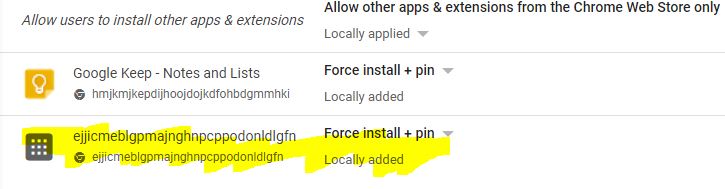
I have this odd app listed under app management as force install and pinned, any idea what it is?

-
Almost there... Just a couple more questions 1) Will the settings (specifically user settings) effect someone's personal Chrome device that they have logged onto at home using the school login, or do these settings only effect devices that are licenced in G Suite? 2) I notice little symbols on some of the settings that indicate chrome browsers (not Chrome OS) does that mean I would be changing everyone's Chrome browser settings on their windows devices if I change these settings Just answered this one and yes they do change the settings on everyone's computers
-
Thanks for the help, you lot are a life saver. Another question (sorry). Would you force install the Google Classroom app from the Android store or use the browser version, is the app better?
-
I have now created the device policies and all looks good. in the user policies what do you have set for - Enrollment permissions - options are enroll a new or re-enroll a deprovisioned device re-enroll existing devices (cannot enroll new or deprovisioned devices) Do not allow users in this organization to enroll new or re-enroll existing devices Thanks
-
Also if I apply a setting to Root > Chrome Devices and then a similar setting to Root > Chrome Devices > Pupil devices which one wins?
-
So what's the best way of applying the network settings based on different proxy settings for pupils and staff? I am thinking, what if a teachers needs to logon to a pupils device how do I a) make sure they have internet so they can login and b) have the correct proxy applied. Current OU structure Root > Chrome Devices > Pupil devices Root > Chrome devices > Staff devices Root > Pupils Root > Staff > Teachers Can I set the pupils proxy settings for Root > Chrome Devices, this should ensure that everyone can logon Can I then set the Staff proxy on Root > Staff, will this then override the pupils proxy with the Staff proxy. Or do I need to apply pupils proxy to Root > Chrome Devices > Pupil devices and the staff proxy to Root > Chrome devices > Staff devices This option obviously means they cant switch devices EDIT - I know you mentioned - The device will apply its device settings based on that OU, then apply the user settings over the top as they log in, but I just wanted to double check
-
Just had a thought, I will be enrolling them using my admin account, does the OU my admin account is in also need the same Chrome OU user settings that the pupils or teachers will have applied to their OUs? Hope that makes sense
-
is this correct, it says chrome upgrade licences = 1? We have 65 Chrome devices Also, should 'devices > networks' be assigned to the devices or users OU?
-
No and yes. The school still logs in using a class default but I created Y5 & 6 logins recently. In the end I just downloaded csv from SIMS made a few changes and imported this into G Suite & DC, although I have just found out these Chromebooks are for 1-2-1 in year 6 and they will not need to access the windows systems
-
We have just taken delivery of our first batch of Chromebook - YAY I have looked over this help page but would prefer some Edugeek help along the way. https://support.google.com/chrome/a/answer/1360534?hl=en&ref_topic=9028498 Just wondering if someone could give me the initial steps needed to start rolling them out or answer a few questions. I assume I need to create OUs for the devices, would you recommend something like this.... Root > Chrome Devices > Pupil devices Root > Chrome devices > Staff devices To enrol a device do I need any settings applied to my admin account first Do I need to apply any settings to the pupil & teacher OUs first. Basically any basic steps to kick me off would be great Yes we do have Chrome Education Upgrade licenses, apparently they have been applied to G Suite already
-
hmmmm something else is going on, just refreshed the drive page and was then able to download as normal, then tried another doc and the download is missing, but its also missing on the doc that could just download. Something glitchy must be going on, ill come back to this later
-
No, this is on new files just created, even in root of drive.
-
At one of my schools whenever a pupil (test pupil as we are just rolling things out) opens a doc in Drive there is no option to download the file in preview mode or when we right click on the doc, the only way is to open the doc using G Docs and then in the file menu is the download option. At my other school there is the option to download without actually needing to open the file. I have looked in apps >drive>sharing settings, and nothing jumps out at me as needing to be changed.
-
We seem to get a message when someone is already signed in (on Chrome), 'please contact your administrator' and it blocks them from signing in. We are only in the early testing phase but this seems to be how ours reacts when someone is already logged in using a personal acc.
-
Just testing Google Classroom. Work is retuned un edited.
TwistedHelixis replied to TwistedHelixis's topic in Cloud Services
Apparently most of the work is in workbook pdf format (from Twinkle) or word docs that have lots of layers and don't convert well, so for these the pupils will probably need to download / print the work, then photograph what they have done, go back to the assignment and attach the photo. I can see these extra steps being a problem for some of the less IT skilled staff, unless there are other ways round these issues. EDIT - this was about Classroom and not DoJo -
Just testing Google Classroom. Work is retuned un edited.
TwistedHelixis replied to TwistedHelixis's topic in Cloud Services
BTW this is what Class DoJo can do now, it looks really good. - -
Just testing Google Classroom. Work is retuned un edited.
TwistedHelixis replied to TwistedHelixis's topic in Cloud Services
Nothing had been deleted, it was my test classroom, test teacher and teat pupil setup. -
Just testing Google Classroom. Work is retuned un edited.
TwistedHelixis replied to TwistedHelixis's topic in Cloud Services
So was just trying to demo Classroom to a teacher and everything went wrong. At the time I couldn't workout why the work wasn't getting retuned to the teacher. Now I can see that all the assigned work was getting saved into the pupils top level drive space and not the classroom folder. Why or how did this happen? The work was being sent from the teachers classroom to the test pupil as an assignment and didn't give any errors. EDIT - the test pupil could also open the doc from the pupils classroom gui. Its just that when the pupil returned the work nothing got sent back. -
I was testing classroom today and got that message. Odd thing is that I closed the app an re opened the it and got in without the error.
-
We would like to move completely away from having an AD server onsite and just have Chromebooks, so need something that can easily grab pupil details from SIMS, add a password and then upload pupils to G Suite. Currently doing this manually with an excel sheet that does auto populate the username@domain and passwords, but wondered if Wonde would automat this.
-
Does Wonde let you pick an automated password for each student, say the first few characters of their name plus some numbers? If not, how does the password system work?
-
Just testing Google Classroom. Work is retuned un edited.
TwistedHelixis replied to TwistedHelixis's topic in Cloud Services
Apparently Class DoJo is much simpler. I haven't used DoJo so can't compare. -
Just testing Google Classroom. Work is retuned un edited.
TwistedHelixis replied to TwistedHelixis's topic in Cloud Services
Out of interest, is there a simpler way of doing thisl? The teacher thinks Classroom is too complicated for a primary school, she mentioned the pupils will get confused, but I think she really means the staff. -
Just testing Google Classroom. Work is retuned un edited.
TwistedHelixis replied to TwistedHelixis's topic in Cloud Services
Worked it out. The teachers uploaded a word doc rather than using a G Doc. Unless Word docs should work in Google Classroom.