Koldov
-
Posts
5,084 -
Joined
-
Last visited
Content Type
Forums
News
20th
EduGeek EDIT Conference
Blogs
Everything posted by Koldov
-

[ms office - o365] PowerPoint Bug Test - I need your help!
Koldov replied to robyholmes's topic in Office Software
No bug... Microsoft Office LTSC Professional Plus 2021 Version 2108 (Build 14332.20706 Click-to-Run) Microsoft® PowerPoint® LTSC MSO (16.0.14332.20696) 64-bit ...I mean, there was a bug... but it was a 'Ladybug' (for our U.S. friends)... however, it disappeared when it should have... -
School Filtering - Pornography False Postitives.
Koldov replied to sigma's topic in Internet Related/Filtering/Firewall
We get a lot but unfortunately I haven't had time to investigate yet whether the user has: Searched for the image Clicked on a link to the image Just had the image blocked in an general image search None of the images are 'bad' but we seem to have 2 main culprits 'Deviant Art' and 'Shutterstock ' both blocked obviously, but it still alerts us that they've tried to access adult content/pornography/nudity, because I guess there are those sort of images on those sites...? To confirm I haven't been too worried as we are alerted because they have been blocked, but I guess the issue is, when you get so many a day, at some point you might miss something.
-
[ltsb, 1809] 2024-05 Cumulative Update (KB5037765) - Error 0x80004005
Koldov posted a topic in Windows 10
2024-05 Cumulative Update for Windows 10 Version 1809 for x64-based Systems (KB5037765) - Error 0x80004005 Not sure if I just haven't had enough coffee this morning or what? Wednesday I set my 2 'in the wild' machines to do their Windows Updates... Server 2019 went OK, but it killed my very old Windows 10 client 'Phenom Machine' (I just thought that maybe it was finally time to let it go anyway, so wasn't too concerned). Yesterday I approved this in WSUS for my 'proper' test machines, Server 2019 went OK, but it would just not install on the Windows 10 client (failed 5 times), so I did some digging... Apparently there are threads appearing all over from non-native English speaking countries that are saying it is failing on Server 2019/2016 because the English - United States (EN-US) language pack isn't installed. This probably hasn't been noticed here because I guess there is only one 'English' version of Server... Anyway, it was getting late and that's when I realised all my Windows 10 clients are EN-GB ('International' ) clients and also don't have the EN-US language pack installed.... I thought I could prove this but had a real hard time installing the EN-US language pack for some reason (probably because my WSUS isn't configured for language packs), so I went to the trouble of downloading the 5GB language pack .iso from MVLSC (or MAC as it's called now). Ready to get stuck in this morning and install the EN-US language and give it another go, but my client is refusing to even acknowledge the update exists... it's still in WSUS, but the client tells me it's 'Up To Date' (even thought it's showing the CU failed to install 5 times)... If it's still in my WSUS, has it been pulled somehow? How does that work? Nothing new has appeared in my WSUS to replace it and the client can't 'see' the old one so I can't test it... -
HikVision CCTV lost pattern match unlock function.
Koldov replied to Koldov's topic in Physical Security
Many thanks! Well, it helps in some respects lol... It also confirms my suspicion of another hidden 'super admin' account, as opposed to our 'fake admin' (operator) account... Anyway, as I got annoyed with going round in circles, I did the unthinkable and turned it off and on again! After it rebooted it came up with the pattern match (which again we failed to guess) and it defaulted to U/P, but... here there is a choice of 'admin' and 'Admin' username... our password doesn't work for the first one, but does for the second one (although once in doesn't give us many options - but enough to view the cameras and replay video I guess). In a way I do understand it from an installer point of view (from working in I.T. all these years) that giving the user minimum access to things that could wreck it is a 'good' thing. But it's not 'right' and it does essentially lock us out of 'managing' a piece of equipment that we actually own... -
HikVision CCTV lost pattern match unlock function.
Koldov replied to Koldov's topic in Physical Security
Yes, we can still get in through U/P. Do you think it has 'locked out' the ability to use the pattern match unlock as it was entered incorrectly (X) times? Yes, on the console. I saw 'Expert Mode' on one Youtube video (but not on any others)... unfortunately I couldn't see anywhere on ours to switch modes... I was looking through iVMS, through the Web interface and locally, the option just doesn't appear to be there either. Strange thing is I couldn't even reboot it.... got a 'no permission' error message. In fact I got a 'no permission' message on lots of menu items. Although I can only see one 'Admin' login in the users section, I have a feeling there may be some hidden account, or maybe a setting whereby a lot of permissions haven't been given for some of the settings... possibly by the installers as the 'Admin' account we have is clearly labelled 'Operator' (not sure if the is HIKvision speak for admin though)... -
I mean... I guess I could say if the user in question didn't insist on using a Macbook, then I wouldn't have had to set up a VM to run SIMS and then I wouldn't have had to set a static IP so that I could open up only that IP in the Firewall, so that they could use the Remote Desktop app to connect to it... But yeah, still me this time...
-
OMG! I found it... I could just go really quiet now and never darken the doorstep of this incredibly stupid thread ever again.... but... A while ago I was having an issue because I dropped all the iPads off the network and had to fire up the old Apple Mac Mini to allow internet connection sharing so they'd all get their new profile. It turns out I had set a static IP on the Wi-Fi (but never used it over Wi-Fi - just because I could I guess)... well that static IP is the very same one... just fired up Advanced IP Scanner and first hit on the Admin Wi-Fi network was "macOS Server (Apache httpd 2.4.34 (Unix) LibreSSL/2.5.5)". What I can't work out is why it only caused a problem last Friday afternoon.... It's OK... I have a feeling I shouldn't even be running a network anyway with such limited knowledge, never really sure why I got the job in the first place! honestly, I'm dangerous... always messing something up.
-
Yeah, I can just imagine how that went... 30 years ago... GEEK 1 - "Guys, guys... I've finally invented DHCP! Now you just join a network and get a random IP assigned to your device! 30 years ago (and 30 seconds later)... GEEK 2 - "Great, thanks for that... but... um, actually I need to set an IP for these devices that can never change or be given out to another device due to fact we get our reports based on the IP address of the device. Oh and also my last 10 years of code for $software is written based on IPs.... and this device has it's config based on it's IP.... (goes on and on for ten minutes about how certain IPs need to be static). GEEK 1 - "Yeah, but reservations... mutter... lease times... mutter... scavenging... mutter... ARP table...mutter"...
-
I will look into it further when I get the time, though as you said I'm just going to leave it for now as it seems to working with the new static IP. Interestingly I tried to set the original IP as static on my windows laptop and got the same results, so at least I know for sure it's definitely something on the switch/network side and not the client. Thanks, I did look into this but I got the distinct impression that this wasn't a Macbook feature and was only for iPhone & iPad iOS (could be wrong though).
-
Our Site Agent has just asked me to look into an issue with our CCTV. From what I can gather they entered the pattern match unlock incorrectly too many times and now it is only giving the option to sign in. They don't know the admin password... Anyway, I got in and signed out again expecting the next time to be asked for the pattern match unlock, but it never gives that option anymore. It always asks for the password, so I'm looking for somewhere to re-enable the pattern match but can't find it. To be clear I've researched it and found where it should be: Admin Sign in > Configuration > Under 'System' on the left menu should now be a 'User' option This should show a screen with the users (or user) in a table format that you can select, click modify and then enable pattern match... Ours doesn't have this bit... as soon as you click on 'User' there is a screen to change the password. Nothing else to select...
-
Yeah, that's all great if you have that kind of set-up already in place (as you might expect in Secondary/Upper school), not so much in a small Primary especially with no loan/BYOD/1 2 1 schemes and therefore no policies in place and no service to accomplish it... anyway, I doubt it was an indication of their expectation, there was just some wise voice in the back saying, "you know what will happen if we give young children devices and unfiltered access to the internet don't you... and if they get into trouble, you know who they'll blame...?" So, the cynic in me thinks that (along with a possibly genuine wish to keep children safe) it was partly just a massive a$$ covering endeavour. I did ask if that was possible, but it appears this has been passed down to me after it's been delayed for quite some time (because $reasons). Questions are now being asked about why it hasn't happened yet... This is what I find strange about the whole deal... The LEA (LAC dept. or whatever) give the school money for the child for some reason, then ask the school to buy a laptop instead of just using some of that money to provide one themselves, or give it to the carer directly. I just don't understand why and what this implies... That we are in a better position than they are to know what device to purchase...? Possibly, if it is to provide a device purely for educational purposes, but then why not state that? However it seems to me this is portrayed as the child's own personal device to do with what they wish, not purely for school work and therefore not to have it restricted, filtered and monitored by the school. But (20 goto 10)... then why make the school purchase it...? As the above posts show, there seems to be no B&W guidelines or recommendations, but it shouldn't be up to us decide what they mean and what they expect from us. As @Primus rightly implies... 'that way repercussions lay' unless you can get it in writing from all parties that they understand this was a zero touch provision from your side....
-
From what I can gather it is to be purchased from the money the school gets. But as far as I can find out, nothing about security, filtering, locking down Windows, providing Office etc... So, pretty much just buy the laptop and give it to the child (or carer I guess)?
-
Once again this has landed on my desk! Advise on a laptop... A few things to note: The child is in the last year (6) of our school, so come summer will be moving on. Although it appears it is our responsibility to purchase/provide, there is no IT support expected (or so they say). I have from a previous thread understood there can be "I don't even touch it" to "Yes, we wipe it and put our Windows and Office on" responses. Our BM is hammering me with links expecting me to provide a 'Yes, get this one' answer, but I don't really know what I should be advising on. Personally, the ones being considered (Windows 11 in "S" mode, eUFS storage, Intel Core i3/Pentium Silver, 1 year M365).... I'd have a hard time recommending (in fact I wouldn't). So although it's not really something I want to get too involved in considering the above, I also don't want to advise them that it's OK if it's not (but then again I've never looked into getting a laptop for an 11 year old, so it might be)! A couple of links I've been sent... https://www.argos.co.uk/product/3281840?clickSR=slp:term:laptop:1:2:1 https://www.argos.co.uk/product/3080285?clickPR=plp:35:245 On the face of it Acer because there's no mention of 'S' mode and it has an SSD (except no M365 mentioned)... but the Lenovo for build quality, i3 as opposed to the 'Silver', and M365 for a year (but eUFS storage and 'S' mode Windows)....
-
On Friday at 15:30 the Headteacher gave me their Macbook to install an SSL certificate so I can enable HTTPS inspection for the last remaining part of our network. It might be coincidence, but after doing this I noticed there was no network/internet access. After much testing I have finally found the following: Setting it to the original static IP of 1.2.3.4 means no network or internet access... The static IP comes from the correct VLAN sub and is in the excluded IP address range... So, as the excluded range is 1.2.3.4 > 1.2.3.4.9.... I just chose the next static of 1.2.3.5 and it worked! Cisco WLC 5508 > Cisco Core Switch 3750 (acting as DHCP server). When setting the Macbook IP address to the original static IP of 1.2.3.4, on the WLC tracing it by MAC address shows an IP of 0.0.0.0 but with the new static, it shows correctly as 1.2.3.5 - so I presume I can rule out any actual issue with the 'mechanics' of what I'm doing... Is there any way I can find out what's wrong with the original static IP? Is there some CLI command I can run on the switch to determine if it has been blacklisted somehow?
-
After narrowing it down to a 'network' issue and possibly not Mac related, I will start a new thread in the appropriate forum.
-
Okay, yes that's narrowed it down... Setting it to the original static IP of 1.2.3.4 means no network or internet access... So, as the excluded range is 1.2.3.4 > 1.2.3.4.9.... I just chose the next static of 1.2.3.5 and it worked! How do I find out what's wrong with the original static IP? Cisco WLC 5508 > Cisco Core Switch 3750 (acting as DHCP server) I've run show ip dhcp conflict to try and see if it's blacklisted on the switch, but obviously it's not in a DHCP range as it's excluded... When setting the Macbook IP address to the original static IP of 1.2.3.4, on the WLC tracing it by MAC address shows an IP of 0.0.0.0 but with the new static, it shows correctly as 1.2.3.5
-
Well, after a lot more testing it appears that it might be something to do with 'network location' profile... once changed I was able to install the certificate and still have internet access (including the certificate check website)... changing back to the work profile = no internet/network access. I'm not sure what has changed but switching it to automatic does work becaujse it gets a DHCP IP address, the 'Work' network location profile was set to a static IP due to the firewall on the VM that runs SIMS.... I didn't want to open it up, so just allowed access from one IP and set the Macbook to have a static IP at work. This has worked fine up until now... Something must have changed on the switches maybe? Has that IP address been blacklisted by the switches or something. The static IP comes from the correct VLAN sub and is in the excluded IP address range...
-
I really don't know where to start with this one, but a 5 minute job on Friday at 15:30 has turned into a bit of an issue... My Headteacher has a Macbook and I'll be honest, it has caused plenty of issues over the few years they've had it and I've made it clear I'm not really qualified in supporting Macs but can normally sort it out in the end (thanks to Edugeek and the internet in general). However, we are working towards HTTPS inspection and this Macbook is the last piece of the puzzle before enabling it site-wide. All I needed to do was install an SSL certificate... which in theory looking at the instructions is relatively simple. As the Headteacher is always 'far too busy' for me to actually have their precious Macbook for any amount of time, I jumped at the chance on Friday afternoon when they said they could spare 5 minutes to get that certificate installed... Downloaded certificate, clicked it, added it in 'ADD CERTIFICATE' to 'SYSTEM', went into keychain and selected 'ALWAYS TRUST'. Tried to go to the certificate check website and.... nothing, page wouldn't load, in fact there was no internet access at all... also no ping (when I found out how to do that). Anyway, they came back and I admitted there was something wrong and I was working on it, but they took it and said sort it out Monday (obviously in a hurry to start their weekend)... So, here we are and I'm none the wiser... the only clue I have is that a while ago we implemented some sort of network locations 'profile' possibly network related for Work and one for Home... strangely enough it is the Work one that no longer works and the Home one now works at work... seriously WTF?! Would having an SSL certificate installed cause this on a Mac? I've just finished the whole Windows estate with zero issues or errors... EDIT: Just to add, I've deleted the certificate now but no change, still no network access or internet...
-
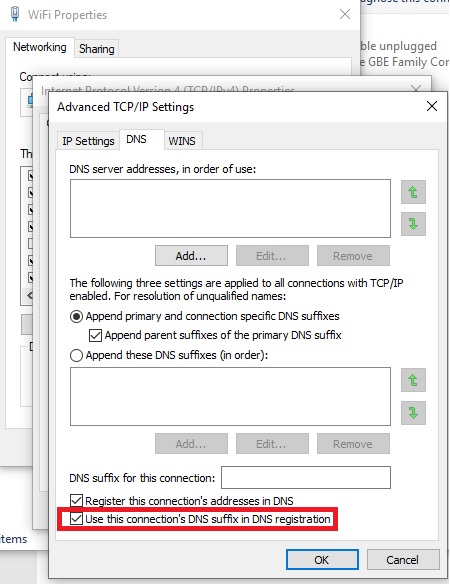
This is off the back of a few other posts about I.P. addresses, DNS, DHCP and so on due to the increased need for reporting (Dfe, KCSIE), but I thought I'd start a new one for this specific issue... I am unable to NSLOOKUP any of the DHCP clients, specifically I'm looking for the teacher's Windows laptops from filtering reports that only give an IP. Bearing in mind we have a strange set-up whereby the switches do DHCP (WLC for wireless clients), I thought this could be the issue but they do register A records in the correct Forward Lookup Zone, just no PTR in the Reverse Lookup Zone. It's not an issue as obviously DNS can work without it and I can scroll through to find the name in the Forward Lookup Zone, but it's easier to do an NSLOOKUP... Anyway, after searching through loads of (my DNS isn't working or how to change DNS server) articles and forums I found a line (16 pages deep) in an MS doc "To change the dynamic update defaults on the dynamic update client, follow these steps: In Control Panel, double-click Network Connections. Right-click the connection that you want to configure, and then click Properties. Click Internet Protocol (TCP/IP), click Properties, and then click Advanced. Click DNS. By default, Register this connection's address in DNS is selected and Use this connection's DNS suffix in DNS registration is not selected. This default configuration causes the client to request that the client register the A resource record and the server register the PTR resource record. Click to select the Use this connection's DNS suffix in DNS registration check box. The client will then request that the server update the PTR record by using the FQDN." I don't need FQDN and actually the default configuration as stated above (underlined) should work, but obviously isn't for some reason... but ticking this box seemed to kick DNS into creating a PTR in the Reverse Lookup Zone and it just wasn't before... I had a test laptop and didn't think it was a drastic change that would grind the network to a halt like changing DNS settings on the server or anything so I ticked the box on the client, did an ipconfig /renew, refreshed DNS on the server and it popped up... a quick NSLOOKUP showed that it works. So, questions... Is there any way (GPO hopefully) to get this box ticked on all the clients..? Is there another way to force PTR creation (I've seen a promising GPO setting, but don't know if it works)...? Computer Configuration > Policies > Administrative Templates > Network > DNS Client > Register PTR records Or is there another reason PTR aren't being created...?
-
We have a number of old iPad mini 2 that we are currently trying to repurpose and give to the SEN department. They are in DUX cases, work fine and hold battery charge well. Honestly it depresses me no end that we've had to send hundreds to recycling over the last few years, so I was determined to try and get these into a state where we could get some sort of use out of them. They're running iOS 12.5.7 and obviously being old (and 'not secure' apparently) I need to limit what can be done on them, so tried to use Meraki SM to limit the apps. We only want to allow a couple of speech therapy apps and maybe Youtube Kids, camera, etc. However, although I'm sure it worked once upon a time, I can't seem to get it to play ball anymore. Neither 'Only allow the following apps' or 'Do not allow the following apps' seems to make any difference... They are supervised, enrolled, got a relevant profile targeted correctly to iPads with a particular tag and although I get that they're not supported for a lot of the settings which are dependant on later iOS versions, this restriction according to my research should work for iOS 11 onwards...
-
Holy necro thread Batman! Probably still relevant if it's about SIMS though...
-
[ipad] MERAKI - Just disabled network access for ALL school iPads!
Koldov replied to Koldov's topic in Mobile Devices & Tablets
Yes, have done this once or twice (and even recovered one)! Sometimes I even do it when a teacher hasn't returned one to the trolley overnight and has left it on their desk after taking photos from it. Then at 9 a.m. when it's all quiet for them taking the morning register, I play the sound every 10 seconds... It soon gets returned! -
[ipad] MERAKI - Just disabled network access for ALL school iPads!
Koldov replied to Koldov's topic in Mobile Devices & Tablets
Yeah, almost makes this whole fiasco pointless... EDIT: One good thing is that the MAC seems to have aligned now, maybe just needed a few hours to get rid of the previous randomisation... -
[ipad] MERAKI - Just disabled network access for ALL school iPads!
Koldov replied to Koldov's topic in Mobile Devices & Tablets
Annoyingly I've just looked there, but that doesn't stop a 24 hour old report showing an 'old' IP address, so I guess that's just for immediate alerts/real-time reporting? So I mean if we are looking in the morning at an emailed report that came in overnight and specifies an IP tried to access a website yesterday, if the iPad has a new IP the old one won't show anywhere. I thought MAC might be better, but somehow the iPad and the WLC are showing different MACs for the same device... I thought this was what I'd just stopped? Meraki SM dashboard has: WiFi MAC 1a:2b:3c:4d:5e:0C and the WLC has: MAC Address a1:b2:c3:d4:e5:85 But both report the same IP... 12.34.56.78 -
[ipad] MERAKI - Just disabled network access for ALL school iPads!
Koldov replied to Koldov's topic in Mobile Devices & Tablets
Agreed! A few of mine still weren't showing the SSID, but as soon as I opened the app and refreshed the page for the dashboard... it showed up... pointless 'feature'! This also means that I guess I can't be 100% certain of the IP address, in case it has been given another by DHCP and hasn't updated the dashboard because the app hasn't been opened...?