ThomL
-
Posts
388 -
Joined
-
Last visited
Content Type
Forums
News
20th
EduGeek EDIT Conference
Blogs
Everything posted by ThomL
-
User can access shared area but can't edit file name?
ThomL replied to abillybob's topic in Windows Server 2008 R2
Is it worth setting the share setting to just 'everyone' & 'full control' and removing the explicit share permissions you have currently - with the right NTFS perms in place the share permissions being wide open shouldn't matter much and removes something that could be causing the issue? If only temporarily for testing? Also you didn't show the permissions for the 2 groups in your OP just the system account, throw those up so we can have a look? -
I'm sure this can be streamlined to be way more efficient and gain a lot of speed of execution - but it annoyed me and this is a working solution. I might take another look later, if anyone can make this better post it up.
-
The below has worked for me, make sure to update the "where {$_.Trustee -eq "[email protected]"} " part to have the email of the sendas mailbox. THe $woSendAs should contain all mailboxes missing the send as permission $allMailboxes = Get-mailbox -ResultSize unlimited $SendAs = Get-RecipientPermission -ResultSize unlimited | where {$_.Trustee -eq "[email protected]"} | select identity $woSendAs = Compare-Object -ReferenceObject $SendAs -DifferenceObject $allMailboxes -Property identity -PassThru
-
I think this is the way to do it, or something like this maybe. First collect all accounts with "sendas" send as permissions in the $SendAs variable. Then collect all account from Exchange Online, but remove the ones we know already have the correct permissions with the $SendAs variable - leaving just the account missing the "sendas" send as permission. $missingSendAs should contain all mailboxes missing the permission.... right? Does that make sense? does this work: $SendAs = Get-RecipientPermission -ResultSize unlimited | where {$_.Trustee -eq "sendas"} | select $_.identity $missingSendAs = Get-mailbox -ResultSize unlimited | where {$_.Name -ne $SendAs.identity}
-
Get-RecipientPermission -ResultSize unlimited | where {($_.Trustee -ne "NT AUTHORITY\SELF") -and ($_.Trustee -ne "NULL SID") } the above finds all sendas permissions for me, it just needs tweaking to show accounts missing permissions for the account "sendas" right? nevermind, the above finds the individual send as perms but that's not what we're trying to do... we need the permissions for each mailbox and then recursive check for sendas perms for the "sendas" account - if they are missing return the mailbox identity?
-
Tthe double negative in the where seems odd - first you say you want the recipient permissions where $_.trustee is not like "sendas" so this find all records that don't include sendas but the you flip that with the outer -not so it then inverts the account found to return account that do have "sendas" as $_.trustee doesn't it? :/
-
would this work? untested just an initial idea: Get-mailbox | Get-RecipientPermission | where {$_.trustee -ne "Sendas"}
-
This is still slower with the same dataset that I've been using: 19.9831ms. Not to say this is slow, its 100% not slow! I'm being very pedantically measuring the differences in the ms range on these cmdlets. From my testing I think this would've been fastest deleting your 17.6GB: [color=#333333]Get-ChildItem -Path "$env:UserProfile\Downloads" -Recurse | foreach {$_.Delete()}[/color] I still think there might be a faster option i just haven't found it yet... The nerd inside of me has enjoyed timing and tweaking these cmdlets too much
-
I forgot the variable used changed from OP to $env:UserProfile, you could still use the original environment variables like $env:HOMEDRIVE $env:HOMEPATH just a case of checking your pathing is correct - its tweaking to match your setup as ShellfishClive said. Looking at the updated cmdlet: Remove-Item -Path $env:UserProfile\Downloads\*.* -Recurse -Force This is just going to delete files from the root folder - if a user downloads a zip file and extracts to the folder, or any subfolders are created they will not be deleted. This isn't an issue if subfolders are unlikely I guess. Is there a better way to get a true recursive deletion of all sub files/folders than this?: Get-ChildItem -Path "$env:UserProfile\Downloads" -Recurse | foreach {Remove-Item $_.FullName -Recurse -Force} Did some cmdlet execution timing while digging into this (very small dataset 3.5MB-32 Files); in my testing deleting the whole folder is the quickest option (8.9641 ms), deleting just the files in the root folder is 52% slower (13.7042 ms) with the slowest being the true recursive delete above - this is 127% slower (20.4096 ms) ****Edit**** This comes in much quicker for a true reclusive delete 10.5144 ms but still 17% slower than deleting the root folder : Get-ChildItem -Path "$env:UserProfile\Downloads" -Recurse | foreach {$_.Delete()}
-
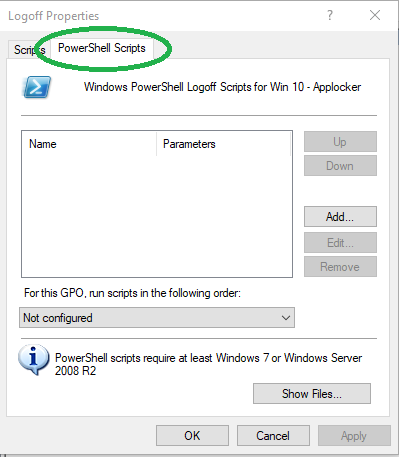
Have you made a PS1 file and then added it to the GPO within the Powershell area?

-
Tested ShellfishClive's script and I agree it deletes the whole folder - but this isn't a bad thing, it's simple and does what's needed, KISS. At the next user login the folder should be recreated automatically, all fresh clean and ready to go. I'd consider not redirecting this folder to a file server/network drive and bit instead keeping it local - especially if your going to delete it like this at logoff. Redirecting to a file server with the data cleared at the end of a session is just placing more IOPS on that fileserver and wasting resources to write the data then followed by removing all the data a short time later. I'd keep it local to the machine they're using so it impacts on the device not the server if possible.
- 15 replies
-
- 1
-

-
- scripts
- server 2012 r2
- (and 1 more)
-
Need help removing students from gal in o365 in bulk
ThomL replied to round2it's topic in How do you do....it?
Powershell to do this to onsite AD something like this, I think, might be helpful: Get-ADUser -SearchBase "OU=OU,DC=domain,DC=com" | Set-ADUser -Replace @{msExchHideFromAddressLists="TRUE"} -
[sims] Script to add student email addresses in to SIMS.net
ThomL replied to kennysarmy's topic in MIS Systems
Just ran patch 20343 this morning, used SA - worked perfectly. -
[sims] Script to add student email addresses in to SIMS.net
ThomL replied to kennysarmy's topic in MIS Systems
You need to make a csv containing all the data you wish to import to SIMS - I'm not certain which SIMS patch it is that you need to run but I know I've done it before for the same reason - switching to firefly email data needed to be populated in SIMS. I'd get the correct sims patch + csv template, then export students from SIMS to get admission numbers - quick formula in excel then save matching SIMS patch csv format and run the patch. sorted! -
Isn't that more of a school policy type affair? Risk assessments and all that sort of jazz? I mean ideally from my point of view each user type/group would be assessed in regards to their job roles and level of access needed in SIM. What do all teachers/admin/TA etc. need and then either locate appropriate permissions from the spreadsheet with a predefined role/series of roles or build a custom role for each group that provides the level of access needed as determined from the previous investigation/review. Having SLT back this or even conduct this review with your input would make this easiest imho. We recently carried out a review of SIMS perms and found some very rogue users that had access to all manner of things, they were locked down, complaints were made, justification + line manager ticket to help desk to get any irregular permissions restored. It tidied things up a fair degree but in the short term was a royal PITA.
-
something like this? simspermissionslatest.xls or at least this gives you a breakdown of permissions received for each role a user is assigned.
-
Isn't 4>&1 more of a linux shell way of doing things? 4>> reduces piping further to Tee-Object so I'd assume runs quicker/cleaner. The fileshare connectivity issues are going to be credential driven, I'd assume because you are already remoting to a device the second hop to another device (fileshare) is being blocked. Messy but a way of resolving without messing with credentials/credssp could be that once the script is done with the first for-each loop you start another for-each looping through to harvest the files from the clients C$ to your local machine?
-
After a quick google it appears that Remove-Item doesn't have an output so your script is working correctly, advice being to redirect the verbose output with "4>>C:\LOG.txt" (i haven't tested this) foreach($computer in (Get-Content C:\Computers.txt)){ Invoke-Command -ComputerName $computer -ScriptBlock { $logfile = "C:\LOG.txt" Get-ChildItem C:\Windows\Temp | Remove-Item -Force -Recurse -Verbose -ErrorAction SilentlyContinue 4[color=#666600]>> [/color][font=Verdana]C:\LOG.txt[/font] } }
-
This would be my guess too - how about saving the logs to a network location so they're all in one place and easier to access rather than having to hop between machines if you want to check logs, you could set permissions to the location easily too.
-
excluded so they aren't needed in the merged csv filename? using my previous example: a1aa1.csv a1aa2.csv a1aa3.csv would merge to aaa-merge.csv? If so this will do what you need, must be saved and run from the same directory as the csv files. If this is not the case and you'd still want to retain any numbers that aren't at the end of the filename this will not do what you need and will require more tweaking to the way $FilenameM is populated to get the filename of the merged csv how you require. $Allcsv = Get-ChildItem -Filter *.csv $FilenameM = $Allcsv[0].BaseName -replace '[^a-zA-Z-]','' foreach ($csv in $Allcsv) { Import-Csv -LiteralPath $csv.FullName | Export-Csv .\$filenameM-merge.csv -NoTypeInformation -Append }
-
Will the file name always be letters and never numbers? so for instance you'll never have: a1aa1.csv a1aa2.csv a1aa3.csv and expect to have a1aa-merge.csv as the output?
-
Are you looking to rename the existing CSV files and also merge them to produce a single csv file, or merge them to a single CSV file that gets its filename from the files merged to make it?
-
All doable with powershell if this is needed on a windows system? You could even gui it up a little - something like this: threeOptions.ps1
-
Bios settings enabled to allow WOL?
-
Sorry I meant to rely to this thread and totally forgot about it! Glad you found a fix