mobrien
-
Posts
20 -
Joined
-
Last visited
Content Type
Forums
News
20th
EduGeek EDIT Conference
Blogs
Everything posted by mobrien
-
Could't agree more. We did the same with documents. If you move MIS, my advice would be to use it as a pruning exercise and to avoid the 'I used to do it like this in SIMS' approach. After all, if you have moved away from SIMS it is probably becuase you want to do things differently! We moved to Bromcom in April and once we worked out that this was not SIMS and that the entire structure behind Bromcom is actually much better realised, it has started becoming brilliant. SIMS always felt like it had so many discrete parts with little seamless integration. Bromcom is feeling like it is solving those problems.We've got a fairly complex system of marksheets. In SIMS this equates to around 700 sheets. Bromcom, got it down to 10 so far! And this is only one example. And having just done exam results and start of year processes, this has also worked really well. Total doddle compared with SIMS. Definitely worth the change 4 months on.
-
We moved away from MDT capturing for when we moved to Windows 10. Too lengthy a process and really cumbersome every time we wanted to make an update to the master image. Instead we added all our apps to the Applications in MDT. Our task sequence installs Win 11 OS added straight from the iso (no capture necessary, just add straight to MDT) and then goes on to install the apps as task sequence items. We have a couple of scripts to clean things up at the end of the install and then good to go. Any app updates or OS updates, we just update the relevant application or OS and it all works. When Win 11 came out, we just imported the extracted ISO as an OS in MDT and it all worked without any changes to the task sequence. Apps installed, cleanup scripts worked, no bother.
-
No, not as yet. We’ve looked at this, but surely there are some scripts or powerautomates ? I can’t find anything much anywhere. I’ve been looking at MS Graph but at present it is a step beyond me
-
Hello, We have been successfully creating Microsoft Teams teams for each class in our MIS and populating them with students and teachers for some time. However, a request we repeatedly get from SLT is to provide a report on the assignments that are being set to students, and whether students are accessing them: an assignments activity report. Has anyone had any success with this? The Insights tool in Teams is not satisfactory for the task that is needed. Any help or scripts would be very gratefully received. Thank you
-
Been running it on all IT Team devices now since September. Not one hitch, still running all admin features and software. Don't get me wrong, we've still got Win10 rigs in the wings just in case. We've also got a single early adopter teacher running it in the wild. Savvy, knows what they are on with and doesn't whinge when things behave a little funky. Equally, not one hitch, so far. It's running identical GPO to the Win10 machines. Machine and User GPOs all applying nicely. And no major security loopholes (that we have yet found). There is a weekly major update, but it is playing nicely. Obviously, not ready for mainstream yet, but it is good to get a head start on this.
-
Hello Andy, We have now - and it seems to have solved it! Many thanks, Michael
-
Hello Andy, I wonder if you can help? We have just come across EWP as a solution to problems we are having with blocking up Office 365 and then it not being able to license as a result. However, we've come across a snag. We can install/deploy EWP fine, and implement a custom json (we have only set the Centre name and no. at present). However, we simply can't get EWP to launch. We tried the original config and that has the same problem. It shows in task manager then disappears. System setup: Windows 10 20H2, no other software installed, clean build. Things we've tried: Clean build install Install pre-win update install post-winupdate Run in compatibility mode. Many more, but nothing seems to get it off the ground. I also saw something about mute audio in the config, but this is already set by default. Hope you can help
-
MS Teams - Weekly Parental/Guardian Digest Email
mobrien replied to stebo730's topic in Cloud Services
Got it sorted now - I'd left the parent designation field blank. Once I set them all as 'parent' rather than the default 'other' the emails got sent. -
MS Teams - Weekly Parental/Guardian Digest Email
mobrien replied to stebo730's topic in Cloud Services
Locker/Ruler connect now has a version that creates the 8 csv files in the Ruler folder. These can then be used to set up SDS, linking the students with their parents. 4 of the csv files created are blank, so as not to interrupt the existing import of SIMs classes into Teams classes (there was a query earlier about this). Once an SDS profile is created with these files, the sync works fine. But, we enabled this early last week and no Guardian emails were sent out. Checked the settings in Teams Admin centre (the master 'switch' under Assignments), and also that each class had the setting for the email enabled and they are correct. Not sure where to go to fix this -
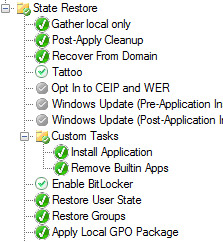
I've just done a 1909 test with a blank WIM and the script mentioned before ran fine. It removed all the Appx packages for all users, with the exception of Mixed Reality Portal which I will fix later. Yes, we run the script in a similar location, 'Remove Builtin Apps' in the image below:

-
Yep, @DJ-1701, this is the way we achieved it too. I do recollect some issues with using a network path and that is why we went for local path.
-
Hi Community, Anyone had any luck with installing Mercury II drivers on Windows 10 at all. We have tried contacting their support and know that it is out of official support, but has anyone managed to get them working? Many thanks in advance.
-
Yes, no problem. We only run the script at the end off the MDT task sequence when we build a machine -it does not run when a user logs in. [i should point out that I am aware of other far more sophisticated scripts, and also ways to simplify our script but as a scripting apprentice, this way made much more sense to us... and it worked!] #Revome Bloatware commands 1 Get-AppxPackage -Name Microsoft.BingNews | Remove-AppxPackage Get-AppxPackage -Name Microsoft.GetHelp | Remove-AppxPackage Get-AppxPackage -Name Microsoft.Getstarted | Remove-AppxPackage Get-AppxPackage -Name Microsoft.Messaging | Remove-AppxPackage Get-AppxPackage -Name Microsoft.Microsoft3DViewer | Remove-AppxPackage Get-AppxPackage -Name Microsoft.MicrosoftOfficeHub | Remove-AppxPackage Get-AppxPackage -Name Microsoft.MicrosoftSolitaireCollection | Remove-AppxPackage Get-AppxPackage -Name Microsoft.NetworkSpeedTest | Remove-AppxPackage Get-AppxPackage -Name Microsoft.News | Remove-AppxPackage Get-AppxPackage -Name Microsoft.Office.Lens | Remove-AppxPackage Get-AppxPackage -Name Microsoft.OneConnect | Remove-AppxPackage Get-AppxPackage -Name Microsoft.People | Remove-AppxPackage Get-AppxPackage -Name Microsoft.Print3D | Remove-AppxPackage Get-AppxPackage -Name Microsoft.RemoteDesktop | Remove-AppxPackage Get-AppxPackage -Name Microsoft.SkypeApp | Remove-AppxPackage Get-AppxPackage -Name Microsoft.WindowsAlarms | Remove-AppxPackage Get-AppxPackage -Name microsoft.windowscommunicationsapps | Remove-AppxPackage Get-AppxPackage -Name Microsoft.WindowsFeedbackHub | Remove-AppxPackage Get-AppxPackage -Name Microsoft.WindowsMaps | Remove-AppxPackage Get-AppxPackage -Name Microsoft.WindowsSoundRecorder | Remove-AppxPackage Get-AppxPackage -Name Microsoft.Xbox.TCUI | Remove-AppxPackage Get-AppxPackage -Name Microsoft.XboxApp | Remove-AppxPackage Get-AppxPackage -Name Microsoft.XboxGameOverlay | Remove-AppxPackage Get-AppxPackage -Name Microsoft.XboxIdentityProvider | Remove-AppxPackage Get-AppxPackage -Name Microsoft.XboxSpeechToTextOverlay | Remove-AppxPackage Get-AppxPackage -Name Microsoft.ZuneMusic | Remove-AppxPackage Get-AppxPackage -Name Microsoft.ZuneVideo | Remove-AppxPackage Get-AppxPackage -Name *EclipseManager* | Remove-AppxPackage Get-AppxPackage -Name *ActiproSoftwareLLC* | Remove-AppxPackage Get-AppxPackage -Name *AdobeSystemsIncorporated.AdobePhotoshopExpress* | Remove-AppxPackage Get-AppxPackage -Name *Duolingo-LearnLanguagesforFree* | Remove-AppxPackage Get-AppxPackage -Name *PandoraMediaInc* | Remove-AppxPackage Get-AppxPackage -Name *CandyCrush* | Remove-AppxPackage Get-AppxPackage -Name *Wunderlist* | Remove-AppxPackage Get-AppxPackage -Name *Flipboard* | Remove-AppxPackage Get-AppxPackage -Name *Twitter* | Remove-AppxPackage Get-AppxPackage -Name *Facebook* | Remove-AppxPackage Get-AppxPackage -Name *Spotify* | Remove-AppxPackage Get-AppxPackage -Name *Minecraft* | Remove-AppxPackage Get-AppxPackage -Name *Royal Revolt* | Remove-AppxPackage Get-AppxPackage -Name *Dolby* | Remove-AppxPackage Get-AppxPackage -Name *Windows.CBSPreview* | Remove-AppxPackage Get-AppxPackage -Name *Phone* | Remove-AppxPackage Get-AppxPackage -Name Microsoft.XboxGamingOverlay | Remove-AppxPackage #Remove Bloatware commands 2 - Removes future installs Get-AppxProvisionedPackage -Online | Where-Object DisplayName -like Microsoft.BingNews | Remove-AppxProvisionedPackage -Online Get-AppxProvisionedPackage -Online | Where-Object DisplayName -like Microsoft.GetHelp | Remove-AppxProvisionedPackage -Online Get-AppxProvisionedPackage -Online | Where-Object DisplayName -like Microsoft.Getstarted | Remove-AppxProvisionedPackage -Online Get-AppxProvisionedPackage -Online | Where-Object DisplayName -like Microsoft.Messaging | Remove-AppxProvisionedPackage -Online Get-AppxProvisionedPackage -Online | Where-Object DisplayName -like Microsoft.Microsoft3DViewer | Remove-AppxProvisionedPackage -Online Get-AppxProvisionedPackage -Online | Where-Object DisplayName -like Microsoft.MicrosoftOfficeHub | Remove-AppxProvisionedPackage -Online Get-AppxProvisionedPackage -Online | Where-Object DisplayName -like Microsoft.MicrosoftSolitaireCollection | Remove-AppxProvisionedPackage -Online Get-AppxProvisionedPackage -Online | Where-Object DisplayName -like Microsoft.NetworkSpeedTest | Remove-AppxProvisionedPackage -Online Get-AppxProvisionedPackage -Online | Where-Object DisplayName -like Microsoft.News | Remove-AppxProvisionedPackage -Online Get-AppxProvisionedPackage -Online | Where-Object DisplayName -like Microsoft.Office.Lens | Remove-AppxProvisionedPackage -Online Get-AppxProvisionedPackage -Online | Where-Object DisplayName -like Microsoft.OneConnect | Remove-AppxProvisionedPackage -Online Get-AppxProvisionedPackage -Online | Where-Object DisplayName -like Microsoft.People | Remove-AppxProvisionedPackage -Online Get-AppxProvisionedPackage -Online | Where-Object DisplayName -like Microsoft.Print3D | Remove-AppxProvisionedPackage -Online Get-AppxProvisionedPackage -Online | Where-Object DisplayName -like Microsoft.RemoteDesktop | Remove-AppxProvisionedPackage -Online Get-AppxProvisionedPackage -Online | Where-Object DisplayName -like Microsoft.SkypeApp | Remove-AppxProvisionedPackage -Online Get-AppxProvisionedPackage -Online | Where-Object DisplayName -like Microsoft.WindowsAlarms | Remove-AppxProvisionedPackage -Online Get-AppxProvisionedPackage -Online | Where-Object DisplayName -like microsoft.windowscommunicationsapps | Remove-AppxProvisionedPackage -Online Get-AppxProvisionedPackage -Online | Where-Object DisplayName -like Microsoft.WindowsFeedbackHub | Remove-AppxProvisionedPackage -Online Get-AppxProvisionedPackage -Online | Where-Object DisplayName -like Microsoft.WindowsMaps | Remove-AppxProvisionedPackage -Online Get-AppxProvisionedPackage -Online | Where-Object DisplayName -like Microsoft.WindowsSoundRecorder | Remove-AppxProvisionedPackage -Online Get-AppxProvisionedPackage -Online | Where-Object DisplayName -like Microsoft.Xbox.TCUI | Remove-AppxProvisionedPackage -Online Get-AppxProvisionedPackage -Online | Where-Object DisplayName -like Microsoft.XboxApp | Remove-AppxProvisionedPackage -Online Get-AppxProvisionedPackage -Online | Where-Object DisplayName -like Microsoft.XboxGameOverlay | Remove-AppxProvisionedPackage -Online Get-AppxProvisionedPackage -Online | Where-Object DisplayName -like Microsoft.XboxIdentityProvider | Remove-AppxProvisionedPackage -Online Get-AppxProvisionedPackage -Online | Where-Object DisplayName -like Microsoft.XboxSpeechToTextOverlay | Remove-AppxProvisionedPackage -Online Get-AppxProvisionedPackage -Online | Where-Object DisplayName -like Microsoft.ZuneMusic | Remove-AppxProvisionedPackage -Online Get-AppxProvisionedPackage -Online | Where-Object DisplayName -like Microsoft.ZuneVideo | Remove-AppxProvisionedPackage -Online Get-AppxProvisionedPackage -Online | Where-Object DisplayName -like *EclipseManager* | Remove-AppxProvisionedPackage -Online Get-AppxProvisionedPackage -Online | Where-Object DisplayName -like *ActiproSoftwareLLC* | Remove-AppxProvisionedPackage -Online Get-AppxProvisionedPackage -Online | Where-Object DisplayName -like *AdobeSystemsIncorporated.AdobePhotoshopExpress* | Remove-AppxProvisionedPackage -Online Get-AppxProvisionedPackage -Online | Where-Object DisplayName -like *Duolingo-LearnLanguagesforFree* | Remove-AppxProvisionedPackage -Online Get-AppxProvisionedPackage -Online | Where-Object DisplayName -like *PandoraMediaInc* | Remove-AppxProvisionedPackage -Online Get-AppxProvisionedPackage -Online | Where-Object DisplayName -like *CandyCrush* | Remove-AppxProvisionedPackage -Online Get-AppxProvisionedPackage -Online | Where-Object DisplayName -like *Wunderlist* | Remove-AppxProvisionedPackage -Online Get-AppxProvisionedPackage -Online | Where-Object DisplayName -like *Flipboard* | Remove-AppxProvisionedPackage -Online Get-AppxProvisionedPackage -Online | Where-Object DisplayName -like *Twitter* | Remove-AppxProvisionedPackage -Online Get-AppxProvisionedPackage -Online | Where-Object DisplayName -like *Facebook* | Remove-AppxProvisionedPackage -Online Get-AppxProvisionedPackage -Online | Where-Object DisplayName -like *Spotify* | Remove-AppxProvisionedPackage -Online Get-AppxProvisionedPackage -Online | Where-Object DisplayName -like *Minecraft* | Remove-AppxProvisionedPackage -Online Get-AppxProvisionedPackage -Online | Where-Object DisplayName -like *Royal Revolt* | Remove-AppxProvisionedPackage -Online Get-AppxProvisionedPackage -Online | Where-Object DisplayName -like *Dolby* | Remove-AppxProvisionedPackage -Online Get-AppxProvisionedPackage -Online | Where-Object DisplayName -like *Windows.CBSPreview* | Remove-AppxProvisionedPackage -Online Get-AppxProvisionedPackage -Online | Where-Object DisplayName -like *Phone* | Remove-AppxProvisionedPackage -Online Get-AppxProvisionedPackage -Online | Where-Object DisplayName -like Microsoft.XboxGamingOverlay | Remove-AppxProvisionedPackage -Online #Fixes Whiteboard and Sway Add-AppxProvisionedPackage -Online -PackagePath "c:\PGS\GPO Folder\StoreApps\Microsoft.Office.Sway_18.1711.50601.0_neutral___8wekyb3d8bbwe.AppxBundle" –LicensePath "c:\PGS\GPO Folder\StoreApps\Microsoft.Office.Sway_8wekyb3d8bbwe_8f700a8e-3731-b777-a6dd-000fe1f8fcb2.xml" Add-AppxProvisionedPackage -Online -PackagePath "c:\PGS\GPO Folder\StoreApps\Microsoft.Whiteboard_19.10422.3487.0_x64__8wekyb3d8bbwe.AppxBundle" –LicensePath "c:\PGS\GPO Folder\StoreApps\Microsoft.Whiteboard_8wekyb3d8bbwe_fe0ac9df-1dfe-da54-be0b-c2e9cbc73355.xml" #Installs once for admin user Get-AppxPackage -allusers Microsoft.MSPaint | Foreach {Add-AppxPackage -DisableDevelopmentMode -Register "$($_.InstallLocation)\AppXManifest.xml"} Get-AppxPackage -allusers Microsoft.WindowsCalculator | Foreach {Add-AppxPackage -DisableDevelopmentMode -Register "$($_.InstallLocation)\AppXManifest.xml"} Get-AppxPackage -allusers Microsoft.WindowsStore | Foreach {Add-AppxPackage -DisableDevelopmentMode -Register "$($_.InstallLocation)\AppXManifest.xml"} Get-AppxPackage -allusers Microsoft.MicrosoftStickyNotes | Foreach {Add-AppxPackage -DisableDevelopmentMode -Register "$($_.InstallLocation)\AppXManifest.xml"} Get-AppxPackage -allusers Microsoft.Office.OneNote | Foreach {Add-AppxPackage -DisableDevelopmentMode -Register "$($_.InstallLocation)\AppXManifest.xml"} Get-AppxPackage -allusers Microsoft.Whiteboard | Foreach {Add-AppxPackage -DisableDevelopmentMode -Register "$($_.InstallLocation)\AppXManifest.xml"} Get-AppxPackage -allusers Microsoft.Office.Sway | Foreach {Add-AppxPackage -DisableDevelopmentMode -Register "$($_.InstallLocation)\AppXManifest.xml"} Get-AppxPackage -allusers Microsoft.Screensketch | Foreach {Add-AppxPackage -DisableDevelopmentMode -Register "$($_.InstallLocation)\AppXManifest.xml"} #Unpin all apps from start menu Pin-App Microsoft.BingNews -Unpin Pin-App Microsoft.GetHelp -Unpin Pin-App Microsoft.Getstarted -Unpin Pin-App Microsoft.Messaging -Unpin Pin-App Microsoft.Microsoft3DViewer -Unpin Pin-App Microsoft.MicrosoftOfficeHub -Unpin Pin-App Microsoft.MicrosoftSolitaireCollection -Unpin Pin-App Microsoft.NetworkSpeedTest -Unpin Pin-App Microsoft.News -Unpin Pin-App Microsoft.Office.Lens -Unpin Pin-App Microsoft.OneConnect -Unpin Pin-App Microsoft.People -Unpin Pin-App Microsoft.Print3D -Unpin Pin-App Microsoft.RemoteDesktop -Unpin Pin-App Microsoft.SkypeApp -Unpin Pin-App Microsoft.WindowsAlarms -Unpin Pin-App microsoft.windowscommunicationsapps -Unpin Pin-App Microsoft.WindowsFeedbackHub -Unpin Pin-App Microsoft.WindowsMaps -Unpin Pin-App Microsoft.WindowsSoundRecorder -Unpin Pin-App Microsoft.Xbox.TCUI -Unpin Pin-App Microsoft.XboxApp -Unpin Pin-App Microsoft.XboxGameOverlay -Unpin Pin-App Microsoft.XboxIdentityProvider -Unpin Pin-App Microsoft.XboxSpeechToTextOverlay -Unpin Pin-App Microsoft.ZuneMusic -Unpin Pin-App Microsoft.ZuneVideo -Unpin Pin-App *EclipseManager* -Unpin Pin-App *ActiproSoftwareLLC* -Unpin Pin-App *AdobeSystemsIncorporated.AdobePhotoshopExpress* -Unpin Pin-App *Duolingo-LearnLanguagesforFree* -Unpin Pin-App *PandoraMediaInc* -Unpin Pin-App *CandyCrush* -Unpin Pin-App *Wunderlist* -Unpin Pin-App *Flipboard* -Unpin Pin-App *Twitter* -Unpin Pin-App *Facebook* -Unpin Pin-App *Spotify* -Unpin Pin-App *Minecraft* -Unpin Pin-App *Royal Revolt* -Unpin Pin-App *Dolby* -Unpin Pin-App *Windows.CBSPreview* -Unpin Pin-App *Phone* -Unpin Pin-App Microsoft.XboxGamingOverlay -Unpin Hope that this is of use to you. We also have a separate script to stop Edge from taking over e.g. pdf files.
-
Hi @supportman We've just (today) completed our 1809 build and it is flying onto machines as I type. 1. Removal of the Store We elected to leave this one on, but set GPO to disable access to it. This means that when a user (staff or student) opens it, no store is loaded. We did this because we still wanted some of the store controlled apps (StickNotes, Snip&Sketch, Calculator) to be managed with the store service. We have actually now improved this by GPO only allowing access to the Organisation (School) store. This means that if a user now signs in, they only see the 5 or so apps that we actually want them to use. However, in your script quoted, I think you need to may need to specify Microsoft.WindowsStore instead of *windowsstore* AND you need to use -name before. It should look like this: Get-AppxPackage -Name *windowsstore* | Remove-AppxPackage We also run an additional command for each bloatware like this: Get-AppxProvisionedPackage -Online | Where-Object DisplayName -like *windowsstore* | Remove-AppxProvisionedPackage -Online This should work for you. 2. We do this in the same script as above, running for each bloatware we want to remove, e.g.: Pin-App Microsoft.BingNews -Unpin 3. Not sure about this one 4. Login image. We had loads of trouble with this. The solution ended up being quite simple. Assuming you have the image somewhere network or locally (we have gone for a local copy), and that you have Computer GPOs set up correctly identifying the logon image... The needle in the haystack was... (drumroll) We were using a Pro license! It MUST be either an enterprise or education license key to work. Hope this helps.
-
Well, that solved it! We added the AppxProvisionedPackage lines into a powershell script that runs during the build, and, once we figured out how to get hold of the bundles we were away! Hooray! Many thanks @DaveAshworth. For those interested, whilst we are sure there are much cleaner ways to achieve the same, we collect an image with all software preinstalled into MDT. When we build a client, the AppxBundle files are copied onto the client device, and a script runs to remove all the bloatware, unpin the start apps, and then install the AppxProvisionedBundles as mentioned previously - works a treat now! This marks the end of a 9 month saga trying to beat Windows 10 into submission. Just in time for 1903...
-
OK, this sounds promising. During the script we use to remove some of the Windows bloatware when preparing an image we run the following lines for Whiteboard and Sway: Get-AppxPackage -allusers Microsoft.Whiteboard | Foreach {Add-AppxPackage -DisableDevelopmentMode -Register "$($_.InstallLocation)\AppXManifest.xml"} Get-AppxPackage -allusers Microsoft.Office.Sway | Foreach {Add-AppxPackage -DisableDevelopmentMode -Register "$($_.InstallLocation)\AppXManifest.xml"} Do we need to change this for an Add-AppxProvisionedPackage command as you suggest? Would you be able to share the syntax we should be using? This would be really helpful. Thanks in advance!
-
OK, that's a shame, but it matches everything that I have read about the store apps. It's going to be a bumpy ride expecting all our students to manage their own apps. And staff - not a hope! Good, this Windows 10 malarkey is!
-
Hi, Like many in these forums we are slowly managing to beat our Windows 10 deployment into something manageable, with a few bumps along the way. The latest issue is the way Microsoft Store apps behave when a user first logs into a device. Specifically, if user1 logs into a device, they must visit the Microsoft Store and download our organisation owned apps. Equally, user2 on the same device must follow the same steps. The apps are installed but not available to users. Details as follows: - We use MDT to collect a sysprepped, prebuilt image in which the Store apps we want are installed (OneNote, Whiteboard, IPEVO etc.). The file-bundles for each of the apps are correctly located in C:\Program Files\WindowsApps as expected. - These apps are part of our xml start menu as described in other threads. - When a user first logs into a device, the apps tiles are dumb placeholders that have no effect at all. - Visiting the store to install the app works correctly, and the app tiles then display their correct icon and name. The issue is that for our 200 staff and 1800 students this process is not sustainable, particularly as users roam around multiple devices all week. Question Is it possible to develop a runonce script that will install/make available the list of apps that we need when a user first logs in? Please bear in mind that my scripting knowledge is limited... Hope you can help. Thanks in advance.
-
Hi, We are trying to develop a script that auto-populates a user's OneDrive, and also adds in our Team sites to the sync. So far, we have managed to get OneDrive to install properly when the user first logs in to Win 10, and I have used the MS recommended link to launch a sync of a team site document area (the 'odopen' one), but now, I am at the point where I'd like this to all happen for the user, without their interaction. Bearing in mind that this is for students too... Ideally, is it possible to: 1. Sign in the user's personal OD 2. Then add a set of team sites. The link that needs to be generated will need to pick up the local logged in user's email address, possibly. Has anyone had any success? Thanks