DEvans
-
Posts
81 -
Joined
-
Last visited
4 Followers


About DEvans

-
I used my wildcard at such the wrong time last season, I'll be back! Great fight for top and kudos to Matt. Great win.
-
Agh. Kept bouncing between third and second, only held first position for a few weeks here and there. Winner came out of no where didn't even see him coming until about half way through the season then just kept on top throughout the last weeks ha. Well done. hope to see it again for next season. 3rd Place, I'm happy with that.
-
Well this is becoming an interesting league. Couldn't get much tighter at the top. Only 5 points behind top now. (2/2/2015) I've been close before but have yet to plant myself in the top spot keep bouncing between 3rd-5th. So frustrating! Haha
-
I haven't visited this thread in a while. Looks like you have got further Banksey. I'm actually not too shocked that the Bluetooth folder is being tricky, its the same problem I have with a folder created by Media Center. Media Center creates a folder called "Recorded TV". Which is installed upon the root of the Windows 7 profile, like an additional profile folder, yet server side you cannot redirect it. They actually can play up with offline files, especially if the Bluetooth folder resides within "Documents", unsure if it does in your case. Quick Tip When playing with offline files on a test machine, never trust any result unless you format the offline file database. When you keep messing with policies a lot of the time the offline files begin to play up rotten because they don't know which way is up. Warning: Do not do this on a live account, you can potentially wipe their documents. How to Format the Offline File Database 1. On the Client/Test Machine go to: HKEY_LOCAL_MACHINE\SYSTEM\CurrentControlSet\Services\Csc\Parameters 2. If parameters does not exist, create it. 3. Now in the Parameters node create a new registry value with the name FormatDatabase of type REG_DWORD (i.e DWord 32-bit value) 4. Set the data in this new registry value to 1 5. Close the regedit editor and restart This now properly puts you back into first Sync Mode. As if no offline folder sync was ever done. You can then watch it's behavior as if it was a live user doing it. It should "just" work when all policies are in place, you don't really want the user to need to do anything. God forbid. See if this resolves your intermittent issues with random machines. Regards, Dan
-

User Profiles not being recreated correctly
DEvans replied to itdirectorscut's topic in Windows Server 2000/2003
Just a few questions to help you out with this: What is your Home Path you have set in Active Directory? What is your Profile Path in AD? Which redirections are you applying? For each redirection what settings do you have in place? Are you using RSAT for your Windows 7 Group Policies or are you using the 2003 server for GPO? Thanks, -
This is what I mean about migrated networks. Did you use XP before? Yeh Enable Allow or Disallow use of offline files feature. Disable (Truly disable not choose "not configured" as the computer won't see a change) Remove Make available offline. Sync all offline on login and Logoff. You will need to Enable these. This is why in Group policy we have three choices. If you set them to not configured, it won't necessarily tell the machine to go back to defaults. Machine will go.. i'm disable.. oh you've changed it to not configured.. well i don't know what that means, so i'll remain off. Once you have left it running in the school for a while, go back and change them all to not configured, thus restoring you to defaults. The less policies applying the better. Hope this helps,
-
Agree with Witch, It is a question of how long is a piece of string. I have seen syncs take ages (depends on how many small files you have). It is essentially just copy and replacing from the server to the client and if the client is on a slow 5.2k Sata drive over a wireless 54Mb/s link. Then obviously we are talking a long time. Gigabit to High Performance SSD. Few Seconds. It is amazing how far we have come the last 5 years. Once the first sync is done however, it is incremental changes from then on.
-
The Sync is not instantaneous, obviously if you have a lot of files, it will take its time to sync up. Log in again to the domain, go to the Sync Center and see what it says, it will probably say something like preparing/waiting for first sync or something. If i were you, to make sure it all works, leave it be. See if it syncs automatically, I have never known it not to. Once it has all sync'd then log off, turn off your networking and then log back in, your files should be available then. Then create a bunch of new documents, also edit a few of the existing ones. Log out, log back into the domain and see if it syncs them from the computer to the server and see if it updates the previous versions of the documents you edited. If it does, then you have successful setup of Offline Files.
-
To test it all you need to do is logon a machine with a staff account. Make sure the profile syncs in sync center. Log off. Then turn off your wireless and/or pull out the network cable and attempt to login. If you are able to, then check to see if you can see your documents. This is how to test to see if you can login with a cache profile. Any work they do at home will then sync with the server once they come back in and use the laptop. Bare in mind for the teachers that they need to turn on the laptop and login or it won't sync and their files won't be available from any other computer. That's a common question. Unless you use VPN or Direct Access of course. Then it will sync over the link when they are at home.
-
Valid point Synack, but anything more than a minute and a half should be questionable really. Depends on the speed of the Hard Drive as well of course but realistically they are normally standard SATA. I haven't dealt with itunes on PCs for a while, so i did forget about that whole issue. Users.. eh. Get an ipod for goodness sake. There is a reg tweak you can do to firefox to put it in a hidden folder in the documents. Users don't see it, don't see a difference yet because it is then redirected out, its a quicker profile. I'll have to hunt that down again. iTunes however is just a royal pain.
-
Redirect everything out of the profile. Though we do not redirect AppData (ironically the folder that gets large). We don't do that because that would rely on 3rd parties to know how to create software properly. Microsoft just want a 1:1 relationship of computers, if a computer isn't shared then regardless of the profile size it will always load from the local machine first, getting people logged in and working in less than 5 seconds. From my experiences, a lot of the time it isn't always about your server setup, it is about your infrastructure. Flat Networks and no stacking in the cores is why it gets stupidly slow. A true 1Gb/s link downloading a profile of 5GB (crazy example) for the first time ever, should technically take not a second more than 45 seconds. I've seen people on here saying they are taking 15-20 minutes! I'd be sacked on the spot. Lot of networks are setup as a Gigabit, but are not setup for a Gigabit. Even on a flat network, with redirection setup as mentioned above you should really be able to get logins down to less than 10 -15 seconds. Regardless of their size. Redirecting the AppData is purely based on your environment. In mine it breaks a certain application that (apparently) is used all the time.. yet I never see anyone using it. I would recommend it if it doesn't break stuff haha.
-
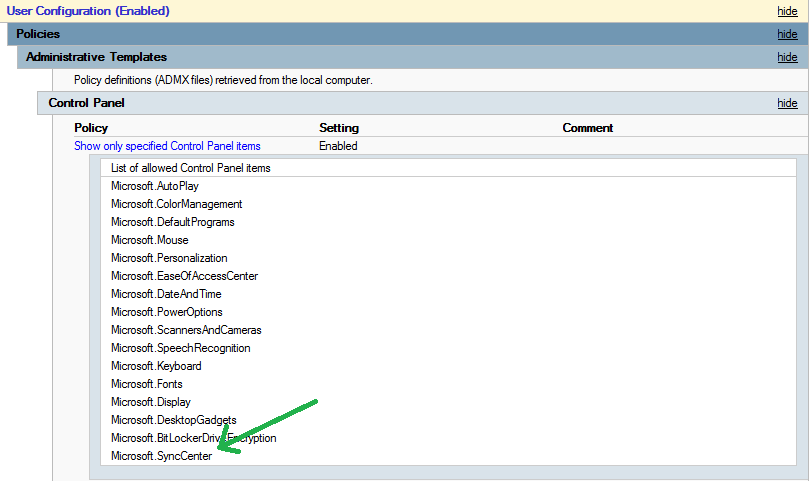
Hey Mate, Since I am waiting for SIMS Summer Upgrade to deploy and have people moan at me during the day I have the time to write this out. haha. If you have a fairly new network (2008R2) which was rebuilt and not migrated and your clients are Windows 7 (again not upgraded from Vista/XP) then you will be already very close to having it all setup and ready to go as by default a lot of the polices are already active and on. I've built dozens of networks from the ground up over the last few years before I took the job i'm in now and have been fortunate to come across these gotchas and common mistakes. In my network I have: Redirected Documents - To their home drive Offline Files Enabled and Working for all Machines An additional Administratively assigned offline file which is not part of the redirected folders In my Active Directory (AD) (apologies if this is teaching how to suck eggs, this post can be the benefit of others as well), in the properties of a user you have the profile tab which specifies the location of their home drive. I have it set to use drive letter P: (P for Personal) and the path to their documents on the server. This alone will map the P:\ drive for the user in their "My Computer" (which is now just called Computer in Win7+). This will not make it available offline automatically. The reason being is because when they click Start -> Documents it will take them to their C:\Users\%username%\Documents folder because we have not yet setup the redirection to make that link go to their home folder location (P:\). So in Group Policy, we setup that redirection. This is a user based policy. In my environment, in my staff user policy, I have redirection setup: So under User Configuration -> Policies -> Windows Settings -> Folder Redirection -> *Right click* Documents and choose properties and I have chosen "Redirect to the user's home directory". On the Settings tab, I don't grant them exclusivity, don't move because I dont need to and I have Windows 7+ throughout the environment so we don't need to turn on legacy features. By simply setting this policy, on the next restart of your client the P:\ drive will now be available offline and the "Sync Center" icon will appear on it. You can prevent this automatically happening by enabling the policy Do not automatically make specific redirected folders available offline found: User Configuration -> Policies -> Administrative Templates -> System -> Folder Redirection -> Do not automatically make specific redirected folders available offline. The reason this is here is because sometimes people don't want to use offline files. In XP environments this was common as XP offlines files were very difficult to manage, not because of the administrator, but because of the limitations built into XP and Server 2003. Now because sometimes Synchronization doesn't always play ball, even on Windows 7, it is a good idea to allow your users access to the Sync Center area on Control Panel. This is optional, but because offline folders is a user based setting, as an admin you will be prevented by your own restrictions troubleshooting. So I set the policy in my control panel restrictions to allow this: User Configuration -> Policies -> Administrative Templates -> Control Panel -> Show Only Specified Control Panel Items -> Add in Microsoft.SyncCenter For a full list of Windows 7 Canonical Names visit this link: Canonical Names of Control Panel Items (Windows) Now finally, if you have a migrated environment, it is wise to turn on offline files. By the sounds of things you don't need to do this as you have already seen synchronizations, but for the benefit of others, you need to turn on offline files if in the past you have had them turned off. Computer Configuration -> Policies -> Administrative Templates -> Network -> Offline Files -> Allow or Disallow use of the Offline Files feature. Set to Enable. This is always a good on or off switch you can use if you only want Synchronization on certain machines. So you say if you are a laptop, turn on offline files, if you are a desktop turn it off. My environment I live the Microsoft Dream and have a 1:1 ratio of laptops to students and 1:1 of desktops/laptops to staff. So I have it all turned on because no computer is shared. Offline files is good to turn off for shared machines. If a desktop is allocated to an individual, it is good to have on because if the server's go down, they can continue to work from their offline files cache, another safety net for you. Essentially, for my documents synchronization you are all done from here. There is no need to really play with anything else. What if what I want sync'd is not in their documents? This is when you can use the policy Administratively assign Offline Files. User Configuration -> Policies -> Administrative Templates -> Network -> Offline Files -> Specify Administratively assigned offline files. Here you can specify a file using a unc path (\\servername\share\file). I use this for a certain file for a certain application. Meaning when offline they can still receive the settings I set server side. Clever stuff, but all optional. Within this same location is where you can specify if you want to encrypt etc. I'm confident you can read a list, so i'll let you have a ganders there. I hope this helps you all out with your issues mate and I hope this answers a few questions for those just curious. Any other questions, by all means, that is what a forum is for. Regards, Dan

-
Offline files are nice and easy to setup and since Windows XP they have come a long way. Back in the days of XP, they were not too great as for some reason Microsoft decided there needed to be some exclusions to what exact file types could be synchronized. To be fair, they had good reason for the filetypes they excluded, its just that XP had a tendency to just moan about it all the time and the user had to suffer with a big red X as an error every time they logged on or off. In Windows 7 Offline files are really easy to sort out. There are a tonne of policies you can pick and choose from but honestly, you can just do it with one policy. As soon as you redirect a folder on a Windows network, the most common being the Documents folder, it becomes instantly available offline. This is because by default all redirected folders are set to be available offline and if you didn't want this to happen you enable the policy that turns this off: User Configuration > Policies > Administrative Templates > System > Folder Redirections "Do Not automatically make redirected folders available offline" -> Enable To be honest, if you just want their documents to be available, then simply apply the redirection policy (which you probably already have) to the documents folder and you'll see the magical "Sync Center" icon appear on their documents drive. Easy. As for the Syncing, just make sure you allow the users access to the Sync Center bit in the Control panel, if you restrict the control panel then the Canonical name is Microsoft.SyncCenter, just add that to your whitelist. It does not use ActiveSync that is Microsoft Exchange term and technology and nothing to do with Offline files. Sync Center is what it is and is built into Windows 7, 8 and 8.1. When they come into the school, it will realise, they did work at home because the copy on the machine is newer than the copy on the server and it does the sync and updates the existing copy. The Cache is stored is the CSC folder in the Windows directory. Do not attempt to access this directory. It is heavily locked down. Things to consider Encryption - Do you want to enable it? Technically speaking there is a copy of potentially sensitive files on that machine, though at the same time you have password protected the machine. (good ole Risk Assessment there) Domain machines only, will only work with a machine on a domain. Profile Adjustments and Server Changes - When you cut and paste documents server side, they are classed as newer. So if you do some shuffling and move someones documents about, whatever work they do at home has a high chance of being lost as the server will be like, I'm the newest, sync with me, get rid of all that other stuff. It is genuinely luck sometimes that can prevent this, but if a file is lost, it is lost. I'm not saying it is impossible to get back, but my god it will take a while and a lot of luck. Awareness, make sure people are aware of how it works. Make sure they know how to sync up. Sometimes they login their machine and don't leave it long enough and it goes wrong. Alternatively, if they have a laptop and don't turn it on. If they login another machine in the school, they will probably expect it to be in their documents. Since it hasn't uploaded from the laptop to the server yet.. well you can see the issue. As others have mentioned, Cache profiles do need to be possible. What many don't know is that since 2008R2 they are on by default, you do not need to disable or alter policies, UNLESS you have migrated from 2003 as all clients would be like its off by default and since the policy is not configured on the 2008R2 (or higher) server, i'm going to assume it remains off. This is why you have a disable, not configured and enable and yet sometimes no configured and enabled is the same, or vice versa. Tbf unless you really know GPO, that's all irrelevant and another discussion for another time, it is clever and just trust that it is haha. Hope this helps!
-
Ok its been a while and just to let everyone know the stages this is at. I've been busy building a PHP version of this website which essentially is identical to the current. I've had a vast amount of people say a php version would be amazing, so i've heard you and am building one. I'm trying to get them to be at the same level side by side, purely for sanity purposes. It is now tablet friendly with HTML 5 tabs and drop downs. It works off SQL Server Express (ASP version) and MySQL (PHP Version). I am literally transitioning to a different job at present, so naturally development has halted briefly, but it's still coming and still being developed. In fact my new job enables me to spend more time on it as before this was done during personal hours not working hours. Apologies for the delay, i'm just trying to please everyone. My PHP knowledge is not the best in the world, its been a while since I used it, but once I got into the swing of it again, I was able to get stuff working in the same way as the ASP version rather quickly. Still in development and I appreciate the support, some people have been absolutely amazing. Some Alpha testers have just taking it apart and broken it in ways I thought were not possible, its amazing how much testing needs to be done, even before Beta. Thanks again and stay tuned, Dan
-
Few Updates on the Project The import feature is working, you can bulk import multiple devices of the same type in 4 simple steps or simply scan in individuals in a quick one step fashion. The web application is following a very straight forward, common sense approach. The basics you want from a website, such as if there is an error, you don't need to go back and retype everything back in again, the feature that you can resolve errors without needing to go back to other steps etc. The fact that it works in pretty much any screen resolution. Big buttons have also been implemented with tablets in mind also, sorta working on the mobile side of things and ways to use a tablets/mobile camera for scanning. Just all the tools you need there and then, no faffing about. Simple and straight to the point. Also, this is open source and i'll be providing documentation on how to "make it your own". Logos can be modified and by all means change the colour scheme if you so desire, all I ask is that my initials/name is kept in the footer. Additionally, I have spoken to a good PHP developer of mine and we are working on a way to get this working on apache servers and MySQL. Understandably I don't want to limit this to just your windows systems, that's unfair as I love both sides of the fence. So to give you an idea on what its looking like here are some screenshots of the bulk import process. Homepage Logged In Home Page Inventory Main Menu Scan In Bulk Step 1 Scan In Bulk Step 2 Scan In Bulk Step 3 Scan in Bulk Step 4 Scan in Import Summary (PreChecks) The single step process is for individual scanning in, the only way (I know how) to successfully ensure that what you put in is controlled to prevent junk in the database is to do a step by step process for the bulk imports as each serial needs to be checked before import and each bit of data needs to be double checked to prevent duplication. When its just one device, it is easier to handle. Before BETA Release I am working on the following Optimise and Index SQL for faster imports Admin Control Panel and User Management Button Modifications and Clean up Debug Mode Switch for error reporting Messaging centre optimisation (duplicate message prevention) PDF Report Outputs Excel Importer (Import Bulk from Excel) Excel Report Output There will be more screenshots when I get further with these developments. I'm also taking requests on how people would prefer it to be laid out and trying to work a way of implementing those recommendations, unfortunately I am just a bit far away from that, I need it working before I add new stuff. Current Future Features since first announcement Messaging Centre with Warranty Monitoring Printer Support (Bespoke Forms for Printers) Projector Inventory (Bespoke Projector Forms) Smartboard and Promethean Board Inventory Management It's really getting on and to see what it looked like about 6 months ago to now is quite amazing, I haven't done a big programming project for a long time, not since my university days and i've missed the feeling of seeing something like this grow up. Just hope it holds out for BETA. Thanks for all your support, I'll update you all again soon in a couple weeks, Dan
- 9 replies
-
- 3
-

-
- beta
- development
- (and 3 more)