MFG
-
Posts
9 -
Joined
-
Last visited
About MFG

-
SCCM Task Sequence Deployment Failing Error Code 0x80070002
MFG replied to MFG's topic in Enterprise Software
@jimmy_2k yes it was a ThinkPad! Do you have more than one device? If so, if you set it up as a standard user and use PowerShell to extract all the current drivers using PS C:\> Export-WindowsDriver -Online -Destination d:\drivers And import these into SCCM, hopefully this will fix the issue for you as I'm sure that this is what I did! Have you imported the drivers into the Task Sequence? -
Hi all, I'm beginning to upgrade all of our workstations from 23H2 to 24H2 to stay up to date, however when pushing out the Feature Update using SCCM I get the 0XC1900200 error when applying to some workstations. After a quick Google search I have found that this is because the machines do not meet the minimum system requirements (they are HP ProDesk 400 G4 mini PCs i3 8th Gen). However, if I image one of these PCs with the 24H2 operating system it builds no problem. How is it that I can apply the upgraded OS through imaging if the machine doesn't meet the requirements for the upgrade? TIA
-
I am trying to upgrade our 23H2 clients to 24H2 using SCCM. I have downloaded the Feature Update to a folder within our MEM server and deployed the content to test collection containing one machine. The update shows within Software Center and downloads successfully, however gets stuck on installing. I have checked the boundary groups, distribution and deployment settings and all look okay so I'm not sure why it's getting stuck here. I have checked the CAS.log and no anomalies there but unsure which other logs to check. Any advice would be greatly appreciated!

-
SCCM Task Sequence Deployment Failing Error Code 0x80070002
MFG replied to MFG's topic in Enterprise Software
Thanks all! After adding the drivers to the task sequence the image was successful -
SCCM Task Sequence Deployment Failing Error Code 0x80070002
MFG replied to MFG's topic in Enterprise Software
It must be a driver issue as after the image fails, the mouse pad doesn't work on the laptop and it is stuck on airplane mode. I have downloaded all of the drivers from the device and imported them into SCCM. I've also distributed the driver package but I'm not sure what else I need to do to get them to apply -
SCCM Task Sequence Deployment Failing Error Code 0x80070002
MFG replied to MFG's topic in Enterprise Software
That's what I thought as when I've experienced this before it usually doesn't even get to the TS Wizard or fails at applying the OS. I'll try it again on another laptop that I know has been imaged before to see if it fails again to see if anything has changed recently to try and narrow it down -
SCCM Task Sequence Deployment Failing Error Code 0x80070002
MFG replied to MFG's topic in Enterprise Software
Yeahh all apps on the child TS are deploying fine, the task sequence itself works on other laptops such as HP ProBooks it just isn't working on the Lenovo ThinkBook as I've never imaged this model before which is why I thought it might be driver issue -
SCCM Task Sequence Deployment Failing Error Code 0x80070002
MFG replied to MFG's topic in Enterprise Software
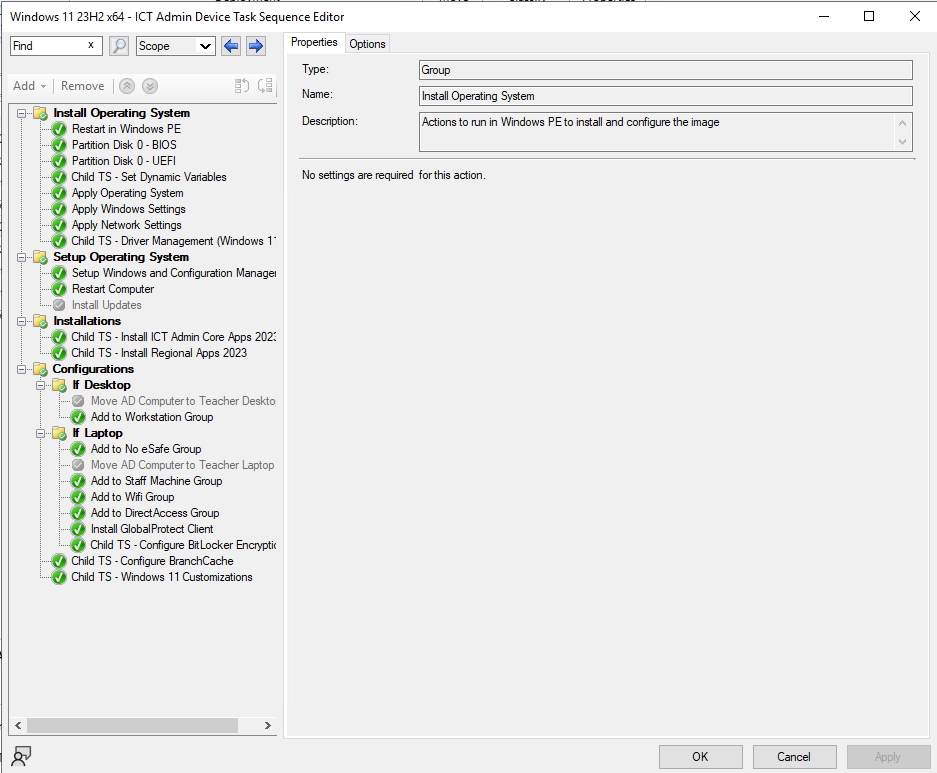
It's those two child task sequences that it's failing at for installing apps, there was an app before 7zip that it failed at first which I got rid of to see if it was that application but then it failed on the next one (which was 7zip) - I haven't tried removing the child TS's but there are quite a few apps on there that I'd like automatically installing -
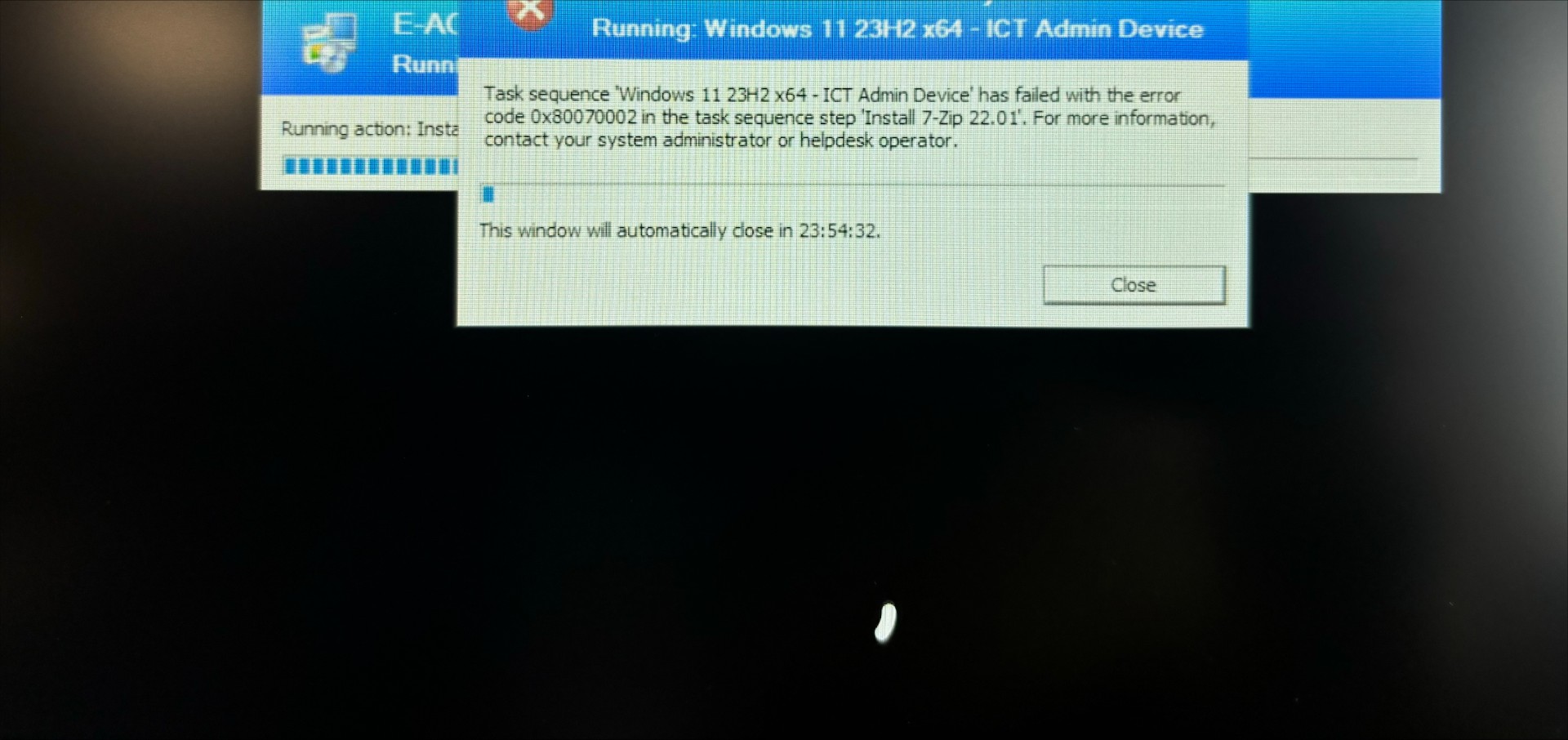
Hi all, I'm struggling to rectify this error when pushing out an existing image via SCCM on a new Lenovo ThinkPad laptop. It gets to the Installations section and then fails with error code above, which suggests that the system cannot find the file specified however I think it's to do with the fact that I've never imaged this make and model of laptop as the laptops I've imaged before are Dell's. I've extracted and uploaded the drivers but it doesn't seem to make a difference, unless I'm missing a step? Can anyone help? TIA!