toffee_paul
-
Posts
208 -
Joined
-
Last visited
Content Type
Forums
News
20th
EduGeek EDIT Conference
Blogs
Everything posted by toffee_paul
-
Hi, We currently run one physical host that has Windows Server 2012 R2 installed with the Hyper-V role that runs two virtual machines. One being the domain controller, the other holding SIMS and both run Server 2012 R2. I'm after some advice on how to upgrade them to Server 2016 Standard. I don't like the thought of in-place upgrades but my school is not in a position to expand the server infrastructure at present. Should I start by shutting VMs down and upgrade the host Server 2012 R2 first then do the VMs or vice-versa? Thanks
-
[1703, cu] Hide settings in the Settings app (new feature in 1703)
toffee_paul replied to Arthur's topic in Windows 10
If using Server 2012 R2 or GP through remote server management tools on a W7 workstation, how do I get the Settings Page Visibility setting to show up? This update is for W10. -
Microsoft releases Office 2019 for Windows and Mac
toffee_paul replied to Zoom7000's topic in Office Software
I've always used the MSI for Office deployments, so for those of us not using any cloud services (shock-horror) what's the best way to deploy this version? I've downloaded the ODT and have an XML file ready to go with the MAK inside but on Service Centre it's showing 0/100 activations. Guessing I also need to request the KMS key from MS? -
Yes been looking into the CredSSP and it's a faff to say the least for such a small basic script. I agree the way to go for now will be to move the logs over to my machine by way of another for-each loop. Thanks ThomL
-
Yep seen that too a few mins ago on the TechNet page under Outputs for the Remove-Item command. Seen the 4>&1 trick on another forum and added it to my code which works well now. Get-ChildItem C:\Windows\Temp | Remove-Item -Force -Recurse -ErrorAction SilentlyContinue -Verbose 4>&1 | Tee-Object -FilePath $logfile -Append Just got to figure out why these won't save to the network now. I'm sure it's something to do with the Invoke-Command Thanks ThomL
-
Unfortunately this didn't work either. Files are created locally but still empty. Here's the console output and this is the info I'd like to see in the log file... Cleanup starting: PC1 ... VERBOSE: Performing the operation "Remove Directory" on target "C:\Windows\Temp\7d034bea-5d9f-42ad-a6c9-98e972294306". VERBOSE: Performing the operation "Remove File" on target "C:\Windows\Temp\7d034bea-5d9f-42ad-a6c9-98e972294306\AgileDotNetRT.dll". VERBOSE: Performing the operation "Remove Directory" on target "C:\Windows\Temp\PDQInventoryScanner". VERBOSE: Performing the operation "Remove File" on target "C:\Windows\Temp\ASPNETSetup_00000.log". VERBOSE: Performing the operation "Remove File" on target "C:\Windows\Temp\ASPNETSetup_00001.log". VERBOSE: Performing the operation "Remove File" on target "C:\Windows\Temp\dd_NDP46-KB4457016-x64_decompression_log.txt". Cleanup complete: PC1 ...
-
foreach($computer in (Get-Content C:\Computers.txt)){ Write-Host Cleanup starting: $computer... Invoke-Command -ComputerName $computer -ScriptBlock { $logfile = "\\SERVER\Software" + $env:computername + ".txt" #$logfile = "C:\" + $env:computername + ".txt" # File created but is empty Get-ChildItem C:\Windows\Temp | Remove-Item -Force -Recurse -Verbose -ErrorAction SilentlyContinue | Out-File -FilePath $logfile -Verbose -Append } Write-Host Cleanup complete: $computer... } On line 4 I get this error when trying to save to a network share with correct permissions set: Access to the path '\\SERVER\Software\PC1.txt' is denied. On line 5 I don't get an error, file is created but is empty. I think there's two issues here, 1. why is the file empty when saved locally, 2. why if permissions are correct do I get access denied.
-
Originally I was trying to save to a network location and this failed too, that's when I tried locally. Thought I'd try and figure out why the local file wasn't working first. It's strange as the files are created locally they're just empty. So the script will create the file so am I misinterpretating how PowerShell piping works?
-
Hi,Trying to get this script to output a list of files that have been deleted but it doesn't seem to log correctly foreach($computer in (Get-Content C:\Computers.txt)){ Invoke-Command -ComputerName $computer -ScriptBlock { $logfile = "C:\LOG.txt" Get-ChildItem C:\Windows\Temp | Remove-Item -Force -Recurse -Verbose -ErrorAction SilentlyContinue | Out-File -FilePath $logfile -Verbose -Append } } The files/folders within the C:\Windows\Temp folders are deleted from all the PCs this script runs against and a "LOG.txt" is created on all PCs but all the files are empty. I'd thought it may confirm what files have successfully been deleted or am I wrong? Thanks
-
Hi, We have several staff who take work home with them on hard drives. At the moment they are using encrypted usb sticks but some require larger capacity drives. Does anyone have experience of 500GB+ encrypted drives and can comment on their reliability? Thank you.
-
For staff in my school? 10 minutes if it was an option!
-
No internet access on domain controller VM
toffee_paul replied to toffee_paul's topic in Windows Server 2012
Remnants inherited from the previous incumbent of my role. -
Can't Remote Desktop into domain controller
toffee_paul replied to toffee_paul's topic in Windows Server 2012
Right it's fixed. For some reason under the Network and Sharing Centre it was the showing the DC as being a Public network and not Domain. After restarting the Network Location Awareness service it automatically picked up the Domain network and remoting into the DC works fine again. Not sure why this happened so will need to read up on this a little. Hope this helps if anyone has the same problem. -
Can't Remote Desktop into domain controller
toffee_paul replied to toffee_paul's topic in Windows Server 2012
It is, although I found that Malwarebytes was responsible for causing that issue and rectified it by uninstalling. Remote desktop to from every other device is working normally but can't connect to the DC from any device. - - - Updated - - - Yes this is the only way in to the DC at the moment and that's how I've been logging on to the server. -
Can't Remote Desktop into domain controller
toffee_paul replied to toffee_paul's topic in Windows Server 2012
Just tried this, no different - - - Updated - - - No luck, same thing happens. -
Can't Remote Desktop into domain controller
toffee_paul replied to toffee_paul's topic in Windows Server 2012
There's update KB 4103718 which changes what happens if unpatched clients connect to patched servers etc but all clients and services are completely up-to-date and I've gone through all the MS bumf on it and checked the settings are all correct. No changes to firewall either. - - - Updated - - - This setting is enabled and only group that has access is the Administrators group of which I am a member. -
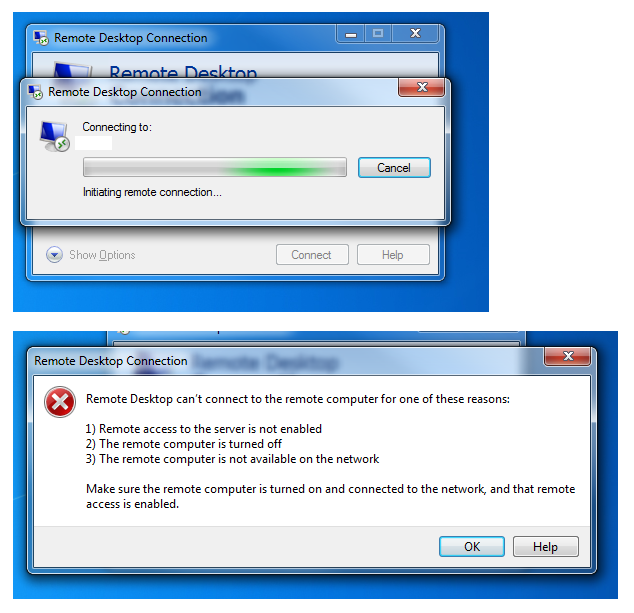
Hi all, Had a problem for a couple of weeks where I can't remote into our Server 2012 R2 DC. I can remote into any other device on the network bar this including the Hyper-V host on which the DC is virtualised on. It just stays stuck on "Initiating remote connection" for about 15 seconds then throws up the "can't connect to the remote computer" Here's what I've tried altready. Checked all required services are running - they are Checked pinging DC works - it does Rebooted DC - still happens EDIT: Also tried remoting in from other desktops to the DC, all the same, I can remote to everything apart from this DC. Any ideas? I'm thinking a dodgy Windows Update but can't see anyone else with the same issue.

-
No internet access on domain controller VM
toffee_paul replied to toffee_paul's topic in Windows Server 2012
Ok thought I'd close this off and say it's not fixed. Appears that uninstalling MalwareBytes fixed the problem. And there's me thinking that software is the dogs ********* well not anymore! -
Hi alll, Anyone noticed http://www.frusonfone.com needs a login now? There's nowhere to sign up so must be for Lenovo/IBM engineers only now. Anyone know of any mirrors? We have a raft of devices out of warranty soon and would have found those vids really useful when repairing laptops etc. Regards, Paul
-
No internet access on domain controller VM
toffee_paul replied to toffee_paul's topic in Windows Server 2012
Here are the results of the dcdiag /test:dns (performed using the 192.168.1.20 as the Preferred DNS server, not the 127.0.0.1 that JackCPickup said to try)
-
No internet access on domain controller VM
toffee_paul replied to toffee_paul's topic in Windows Server 2012
No, the IP of the DC isn't shown in the list at all -
No internet access on domain controller VM
toffee_paul replied to toffee_paul's topic in Windows Server 2012
All clients are using 192.168.1.20 and can reach internet with no issues. First I added 8.8.8.8 as the first forwarder in the list (retaining existing NIC settings as advised) and it validated immediately to 'google-public-dns-a-google.com' but still no internet connectivity. Then I tried setting the DNS server on NIC to 127.0.0.1and this worked and sites are loading nicely. What does this mean then? If the DC (the only one on the network) has IP of 192.168.1.20, and has the DNS and DHCP roles installed, can't access the internet and can't ping using it's own IP address as the Preferred DNS server, but works with 127.0.0.1 .... why would that be? -
No internet access on domain controller VM
toffee_paul replied to toffee_paul's topic in Windows Server 2012
Ok still having this problem. No internet connectivity on DC and ping not working either. When I change the Preferred DNS server from 192.168.1.20 (which is also the IP of the DC running the DNS role), to Google's public IP 8.8.8.8 or even to the IP of our Smoothwall, internet connectivity returns. The Preferred DNS setting has always been the IP of the DC itself so I have no idea what's going on. Anyone any ideas? -
No internet access on domain controller VM
toffee_paul replied to toffee_paul's topic in Windows Server 2012
I've checked the Forwarders and both Virgin Media's entries are present. Any other ideas? This is driving me insane, I've restarted the entire physical Hyper-V host now so everything's had a clean boot and this VM is the only one that doesn't access the internet out of 4 running on Hyper-V. -
Hi all, Having an issue with our domain controller, for the past few weeks we've not been able to access the internet from a browser on it. I can ping other devices on the network from the DC but when I try and ping Google or BBC or anything else I get "Ping request could not find host google.co.uk. Please check name and try again." Chrome says "This site can't be reached. www.google.co.uk's server IP address could not be found. DNS_PROBE_FINISHED_BAD_CONFIG. Tried rebooting the DC but hasn't worked. Internet access from other VMs on the Hyper-V is fine, it's just DC1. Everything else if fine apart from this, all devices can access roles installed on the DC, incl. network shares, print server etc. WSUS is installed on this DC though so it's not pulling through latest updates which is starting to worry me now as clients won't receive them either. Any ideas? Thanks in advance.