Shaun_Dark_Lord
-
Posts
209 -
Joined
-
Last visited
Content Type
Forums
News
20th
EduGeek EDIT Conference
Blogs
Everything posted by Shaun_Dark_Lord
-

Windows 11 Gpo settings and REG settings that might be useful
Shaun_Dark_Lord replied to Jaan's topic in Windows 11
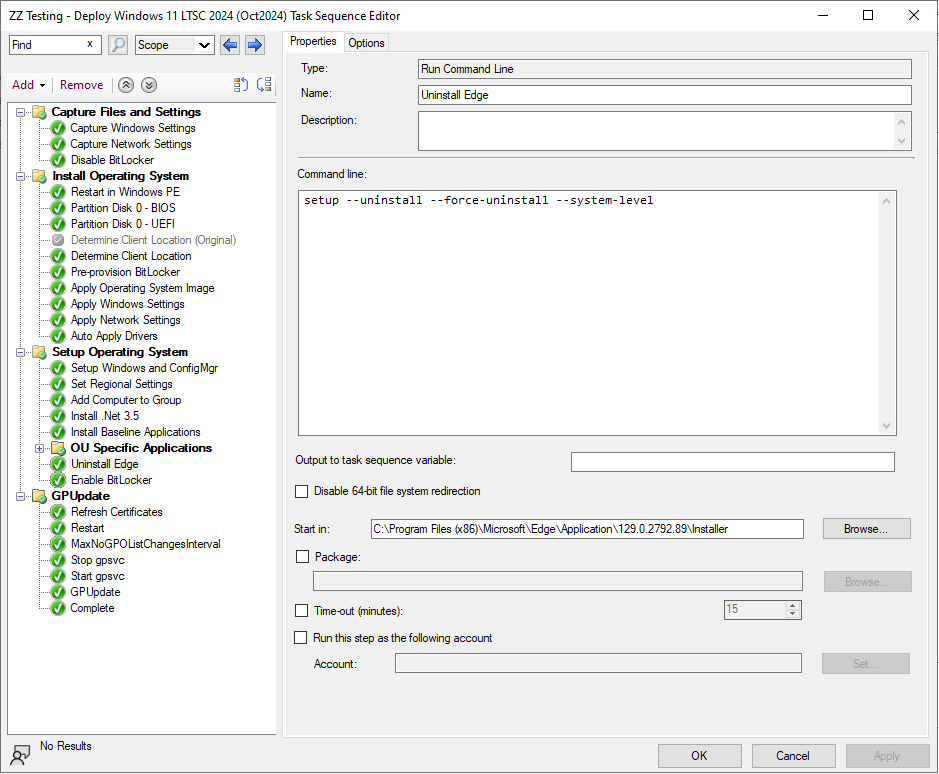
C:\Program Files (x86)\Microsoft\Edge\Application\129.0.2792.89\Installer\setup --uninstall --force-uninstall --system-level
-
Morning! I'm looking for options for two-way password sync for specific users between Google and on-site AD. We'd like to maintain some separation between the two services, so don't currently believe that ADFS would be beneficial at this time. The AD to Google password sync can be easily handled by Google's password sync process. The Google to AD sync is what I'm currently pondering. We can set a custom URL for the Google password change. I have considered building something bespoke that handles that request, and then updates both Google and AD passwords, but that obviously needs to be robust and secure, which is likely to take time. Are there any viable open source or commercial solutions for this? I don't want to spend a fortune on this, as it only affects a specific subset of users. Regards
-
Hi All I need somewhere secure to host a few MB of data - Mostly email addresses. These will then feed into our helpdesk so users can select valid addresses rather than just making a guess....... Our helpdesk system supports pulling data in JSON format via REST, and supports basic auth or API keys. (No Oauth yet ) I've not yet found a suitable cloud based host that I'm happy with, so want to look at hosting something myself. Any recommendations? Ideally, I'd need; A fairly basic structure where I can just dump a few lists of email addresses. API access so I can keep the data updated automatically. Each data set to be output as JSON. User/API Key level restricted access to individual data sets to limit what the helpdesk has access to. Thanks!
-
LINK Permanent. Full time, but part time may be considered. 37 hours a week, All year round. Swale Academies Trust has an exciting opportunity to appoint an IT Administrator at the Trust’s central offices at Ashdown House based in Sittingbourne. As an IT administrator, the post holder would be expected to deliver a professional, effective and supportive service to the Trust’s schools, Central Services and Trust wide cloud-based services. Working as part of an innovative and responsive IT team to provide first line support for schools, assist the maintenance of school services, provide remote assistance to schools, update websites, proactive administration and upkeep in school systems to the highest possible standard. The successful candidate would need to: Be educated to a G.C.S.E level; Have a basic understanding of Network Basics; Be enthusiastic and willing to learn; Have effective interpersonal skills; Have a solution focused approach, with the ability to work independently. MCSA and / or gSuite administrator qualifications, experience of BromCom, Windows Server install and working within the education sector would be an advantage but is not essential. Full details of the requirements of the post can be found in the accompanying recruitment pack. As a Trust we offer our employees: Generous holiday entitlement of 25 days a year plus Bank holidays and a concessionary day at Christmas. Local Government Pension Scheme – with a generous employer contribution; Employee Assistance Programme – Wellbeing and advice; Cycle to Work Scheme; Eye test reimbursement; Kent Rewards Scheme – access to local and national retail discounts. Employee Referral Recruitment Incentive. If you are interested in this post, please contact Alec Prenter, Head of IT at [email protected] or 01795 426091. Applications should be made via Kent Teach. If you experience any difficulty in completing the application form, please contact [email protected] or 01795 426091 (option 2) In accordance with current GDPR compliance we will not keep any details / application forms on file once the position is filled. Interview Dates: 20th June 2022 Swale Academies Trust is committed to safeguarding and promoting the welfare of children and young people and expects all staff and volunteers to share this commitment. This post is exempt from ROA and will require an enhanced DBS disclosure
-
Link Permanent. Full Time. 37 hours a week, All year round. Swale Academies Trust has a rare and exciting opportunity to appoint a Regional IT Manager. As a Regional IT Manager, the post holder would be expected to lead an effective and supportive service to schools in the regional group. They will be expected to drive proactive administration and upkeep of school IT services to the highest possible standard. They will ensure that suitable support is provided for all IT equipment, provided or advised by Swale Academies Trust or required by the schools. Duties may vary from day to day according to the IT needs of the schools as detailed in the accompanying recruitment pack. The objective is always the maintenance of high standards of education for pupils and best value for the Trust. The role will involve regular attendance at, and travel between, Trust schools. The successful candidate would have: School Experience at IT Leadership level; Experience in Domain maintenance, software packaging, Gsuite Administration and Website or Google site administration; Firewall, filtering and MIS management Excellent interpersonal skills; Staff Line Management and Leadership skills. Qualifications in A+, N+, Google Foundations, MCSA and VCP would be an advantage but not essential. Full details of the requirements of the post can be found in the accompanying recruitment pack. As a Trust we offer our employees: Generous holiday entitlement of 27 days a year plus Bank holidays and a concessionary day at Christmas; Christmas Closure (3 days holiday entitlement to be used for this); Additional holiday for 5 year + service; Local Government Pension Scheme – with a generous employer contribution; Employee Assistance Programme – Wellbeing and advice; Ride to Work Scheme; Eye test reimbursement; Kent Rewards Scheme – access to local and national retail discounts. Employee Referral Recruitment Incentive. If you are interested in this post, please contact Alec Prenter, Head of IT at [email protected] or 01795 426091. Applications should be made via Kent Teach. Please note, we cannot accept CVs. If you experience any difficulty in completing the application form, please contact [email protected] or 01795 426091 (option 2) In accordance with current GDPR compliance we will not keep any details / application forms on file once the position is filled. Interview Dates: 21st June 2022 Swale Academies Trust is committed to safeguarding and promoting the welfare of children and young people and expects all staff and volunteers to share this commitment. This post is exempt from ROA and will require an enhanced DBS disclosure
-
Position advertised; https://www.swale.at/vacancies?vacancyid=1652 Really nice school and great faculty. Strong support from the Trust Central IT Team. IT Manager's office next to the canteen, so easy access to bacon rolls.
- 1 reply
-
- 1
-

-
My old job; https://www.swale.at/vacancies?school=TheWhitstableSchool&vacancyid=1606 Really nice school to work in, plus the supporting Trust IT Team is pretty good
-
GCPW - Force AD password change?
Shaun_Dark_Lord replied to Shaun_Dark_Lord's topic in Cloud Services
Update - Google now updating their GCPW documentation to reflect how the product actually works! -
GCPW - Force AD password change?
Shaun_Dark_Lord replied to Shaun_Dark_Lord's topic in Cloud Services
Am running custom script, so could do that. I'd still prefer the option of having the force password change actually work. Will report to Google. -
GCPW - Force AD password change?
Shaun_Dark_Lord replied to Shaun_Dark_Lord's topic in Cloud Services
Thanks Primus - Unfortunately, I'm pretty sure that the majority of staff/students would just carry on using a default password. -
GCPW - Force AD password change?
Shaun_Dark_Lord replied to Shaun_Dark_Lord's topic in Cloud Services
In some instances, yes, this could replace AD. But it specifically supports logging into both Google and AD accounts at the same time, and everything works apart from password changes at login. https://support.google.com/a/answer/9796679?hl=en&ref_topic=9539498 -
GCPW - Force AD password change?
Shaun_Dark_Lord replied to Shaun_Dark_Lord's topic in Cloud Services
Anyone? -
Hi All I've been having a look at Google Credential Provider for Windows - Looks promising, and is mostly working. The custom Google attribute has been set on the Google accounts to link them to the correct AD account, and the correct GPOs and file permissions are applying. However........ How on earth are password changes expected to be handled? Typically, we give a user a temporary password, they are prompted to change this at login, and their new password is sync to their Google account via Google Password Sync. On a GCPW client, they log in to their Google account with the temporary password, accept the normal user agreement, and are then prompted for their existing AD account password - Which isn't the temporary password. At no point are they prompted to change their password, and can get no further than this prompt. Am I missing something? Thanks
-
[Gsuite] SMTP connection fails after X emails
Shaun_Dark_Lord replied to timbo343's topic in Cloud Services
Sorry to dig up an old thread, but this topic has kept me occupied for most of the last week. The issue popped up for us when switching from Bromcom's limited SMTP service to Google SMTP. As a Google workspace customer, the advertised daily SMTP limit is 130x the number of users, so ~2000000 for us (we're a MAT). The maximum send rate in any 10 minute period is 9x the number of users, so ~140000 for us. SOURCE But, we were consistently hitting a limit after ~100 emails. I wrote a Powershell script to determine where the issue was occurring, and discovered that; Powershell doesn't do a great job of displaying SMTP error codes. I could replicate the behavior seen in Bromcom - Failures after ~100 emails. The issue related to the authenticating sender account - Attempting to send an email from a different external IP using the same credentials failed instantly if the limit had been reached within the last few minutes. I fired up a copy of Pegasus mail, and attempted to send an email whilst rate limited - This time I received an error; 454 4.7.0 Too many login attempts, please try again later. c5sm123129wrn.18 - gsmtp A Google search (or many) found similar issues, but the most relevant was this one. "OK, so this appears to be expected as Jira is connecting to our servers for every message you send and they are connecting to smtp.gmail.com. G Suite SMTP relay servers have protections in place to guard against Denial of Service (DoS) attacks. To avoid conflicts with these protections, SMTP agents that send large amounts of mail through smtp-relay.google.com and smtp.gmail.com should reuse connections, sending multiple messages per connection. This is also known as connection caching. For instructions on this process, please contact your email server software provider. " I modified my test script, and was able to send 1000 emails successfully if I simply used the same initial connection for all messages. Hope this helps someone. Original Code; Modified Code;
-
Suggestions for MAT filtering?
Shaun_Dark_Lord replied to Shaun_Dark_Lord's topic in Internet Related/Filtering/Firewall
I didn't want to say who we're currently using, as the implementation is out of our control, and there may well be very happy customers. For those of you recommending specific products, please could you elaborate? Are you also running a mix of Windows and ChromeOS clients? Have you run into any issues? -
Suggestions for MAT filtering?
Shaun_Dark_Lord posted a topic in Internet Related/Filtering/Firewall
Hi All I'm looking for some suggestions from end users. The "highly regarded" edge content filtering system we currently have employed doesn't do the job (I didn't pick it - it was an "upgrade" chosen by our ISP). With the adoption of newer SSL/TLS standards, this was not a surprise, but puts us in a position where inappropriate content is getting through and reporting is laughable. So, I'm on the hunt for a content filtering system, that's ideally cloud-based and supports Windows and Chrome devices. It would be nice to have all the safeguarding features baked in, but if it has the capability of building them that will do. Thanks in advance! -
Hi All We've recently migrated ~12 schools from SIMS to Bromcom. The migration process didn't include everything (to avoid bloating Bromcom with 20 years worth of data). We need to keep SIMS around for HR and Freedom of Information requests. We're considering moving all the databases to one central site. Has anyone done anything similar, and if so, what approach did you take, and where there any gotchas? Right now, I'm thinking of either; One VM per SIMS instance. All SIMS databases on the one server/SQL instance, with some clever way of switching between connect.ini files. Any suggestions would be very welcome! Thanks
-
Google Classroom Statistics > Graphs > SLT Email
Shaun_Dark_Lord replied to Shaun_Dark_Lord's topic in How do you do....it?
There is indeed - However, many of my "deleted" classes show their status as "Active"............ No response from Google yet, though they do appear to be working on the issue. -
SIMS report -> Google Classroom
Shaun_Dark_Lord replied to Shaun_Dark_Lord's topic in How do you do....it?
Google very kindly introduced a "feature" this week, where the API now returns a list of all your classes including the deleted ones. As there's currently no way to identify the deleted classes (there's no "DELETED" status), Ross over at GAMADV has very quickly worked his magic, and updated GAM to compensate for classes that are listed, but not actually there....... So, in a nutshell, update to at least GAMADV 4.86.07 -
Google Classroom Statistics > Graphs > SLT Email
Shaun_Dark_Lord replied to Shaun_Dark_Lord's topic in How do you do....it?
Google very kindly introduced a "feature" this week, where the API now returns a list of all your classes including the deleted ones. As there's currently no way to identify the deleted classes (there's no "DELETED" status), Ross over at GAMADV has very quickly worked his magic, and updated GAM to compensate for classes that are listed, but not actually there....... So, in a nutshell, update to at least GAMADV 4.86.07 -
Using AD Groups to Create/Manage Google Classrooms
Shaun_Dark_Lord replied to Shaun_Dark_Lord's topic in How do you do....it?
Google very kindly introduced a "feature" this week, where the API now returns a list of all your classes including the deleted ones. As there's currently no way to identify the deleted classes (there's no "DELETED" status), Ross over at GAMADV has very quickly worked his magic, and updated GAM to compensate for classes that are listed, but not actually there....... So, in a nutshell, update to at least GAMADV 4.86.07 -
Using AD Groups to Create/Manage Google Classrooms
Shaun_Dark_Lord replied to Shaun_Dark_Lord's topic in How do you do....it?
##Set preferences #AD Settings (Used if you're using AD to store/verify your Staff/Student addresses) $MailVariable = "gmail" ##AD option used to store email address. $OwnerVariable = "ManagedBy" ##AD option used to store Class Owner. $ClassGroupOU = "OU=CustomClasses,OU=Classes,OU=School Groups,DC=myschool,DC=com" #File Paths and Misc Settings $LogfilePath = ".\Logs\" ##Path where log files are created. $Classfilepath = ".\ClassData\" ##Path where data file is created. $GAMPath = "C:\GAM\GAMADV\gam.exe" ##Path where GAMADV is installed. $GAMData = ".\GAMData\" ##Path where GAM data is recorded. $GAMDataSize = "10KB" ##Minimum expected size for successfully exported GAM Data #School and Email Settings $SchoolPrefix = "MySchool" ##Prefix to add to Class Alias to prevent MAT conflicts. $SMTPServer = "aspmx.l.google.com" ##SMTP server for emailing log files. $SMTPTo = "Alerts " ##Recipient address for log files. $SMTPFrom = "DC001 " ##Sender address for log files. ##/Set preferences Import-Module ActiveDirectory $dnsroot = '@' + (Get-ADDomain).dnsroot ##Determine Start Time $StartTime = Get-Date ##Setup Counters $ClassCreated = 0 $ClassModified = 0 $ClassRemoved = 0 $InvalidClass = 0 ##Check paths if (Test-Path -Path $LogfilePath) { #"Log folder exists" } else { New-Item $LogfilePath -type directory #Creates log folder. } if (Test-Path -Path $Classfilepath) { #"Class Data folder exists" } else { New-Item $Classfilepath -type directory #Creates log folder. } if (Test-Path -Path $GAMData) { #"GAM Data folder exists" } else { New-Item $GAMData -type directory #Creates log folder. } ##Set Logfile Name $Logfilename = Get-Date -UFormat "%Y%m%d" $Logfile = $Logfilepath + $Logfilename + ".txt" ##Clear old GAM data Write-Host "Clearing old GAM data files...." -ForegroundColor Green Get-ChildItem -Path $GAMData -Recurse -Force | Remove-Item -Force ##Clear old Class data Write-Host "Clearing old Class data files...." -ForegroundColor Green Get-ChildItem -Path $Classfilepath -Recurse -Force | Remove-Item -Force ##Export Current Google Classes Write-Host "Grabbing list of existing Google Classrooms....." -ForegroundColor Green $GAMCurrent = $GAMData + 'GAMCurrent.csv' & $GAMPath print courses state provisioned state active state declined alias fields id fields name fields courseState owneremail > $GAMCurrent 2> $null ## Check that GAM data exists if ((Test-Path -Path $GAMCurrent) -And (Get-Item $GAMCurrent).Length -gt $GAMDataSize) { Write-Host "Grabbing list of existing Google Classrooms - Success!" -ForegroundColor Green Write-Host "Searching for Custom Class Groups in $ClassGroupOU" -ForegroundColor Green $ClassGroups = Get-ADGroup -Filter * -Properties * -SearchBase $ClassGroupOU | Where {($_.$OwnerVariable -ne $null)} | Where {$_.members} ##Grab groups with members and Owner set. foreach ($ClassGroup in $ClassGroups) { $ClassName = $ClassGroup.Name $ClassAlias = $SchoolPrefix + "Custom_" + $Classname -replace ' ','_' $ClassDN = $ClassGroup.DistinguishedName $ClassOwner = $ClassGroup.$OwnerVariable $ClassOwnerEmail = Get-ADUser -Identity $ClassOwner -Properties * | Select-Object -ExpandProperty $MailVariable Set-ADGroup $ClassDN -Description $ClassAlias ##Sets Group description to $ClassAlias for valid class matching. if ($ClassOwnerEmail) { $ExistingCourseList = Import-Csv -Path $GAMCurrent | Where {$_.Aliases -eq $ClassAlias } if ($ExistingCourseList) { foreach ($Item in $ExistingCourseList){ $CurrentOwner = $Item.ownerEmail } if (($CurrentOwner -eq $ClassOwnerEmail)) { Write-Host "Owner for class $ClassAlias already set" -ForegroundColor Blue } else { Write-Host "Google Classroom $ClassAlias already exists - changing owner to $ClassOwnerEmail and reset course to provisioned." -ForegroundColor Green $Loginfo = 'Google Classroom ' + $ClassAlias + ' already exists - changing owner to ' + $ClassOwnerEmail + ' and reset course to provisioned.' "$Loginfo" | Out-File $Logfile -append $ClassModified = $ClassModified + 1 & $GAMPath update course $ClassAlias status PROVISIONED 2> $null & $GAMPath course $ClassAlias add teacher $ClassOwnerEmail 2> $null & $GAMPath update course $ClassAlias owner $ClassOwnerEmail 2> $null } } else { Write-Host "Creating Google Classroom $ClassAlias with teacher $ClassOwnerEmail" -ForegroundColor Green ##Write to log file## $Loginfo = 'Created Google Classroom ' + $ClassAlias + ' with ' + $ClassOwnerEmail "$Loginfo" | Out-File $Logfile -append $ClassCreated = $ClassCreated + 1 & $GAMPath create course alias $ClassAlias name $ClassName teacher $ClassOwnerEmail 2> $null & $GAMPath course $ClassAlias add teacher $ClassOwnerEmail 2> $null } $Students = Get-ADGroupMember $ClassDN -Recursive | Where {$_.objectclass -eq 'user'} | Get-ADUSer -Properties * | Where {$_.$MailVariable -ne $null} $StudCount = @($Students).count Write-Host "Generating CSV for class $ClassAlias with $StudCount students." -ForegroundColor Green foreach ($Student in $Students) { $UserInfo = Get-ADUser -Identity $Student -Properties * $StudName = $UserInfo.displayname $StudEmail = $UserInfo.$MailVariable $Classfile = $Classfilepath + $ClassAlias + ".csv" if((Test-Path -Path $Classfile )){ #Check to see if file has already been created #"Class file already exists" } else { $Classhead = 'Email' "$Classhead" | Out-File $Classfile -append #Create Blank class file } "$StudEmail" | Out-File $Classfile -append #Add student's email address to class file. } Write-Host "Syncing $StudCount students with Google Classroom $ClassAlias" -ForegroundColor Green $RawCourseCSV = $Classfilepath + "Raw_" + $ClassAlias + ".csv" Get-Content $Classfile -Raw | Set-Content $RawCourseCSV #Reencode course CSV to RAw so that it can be read by GAM. $CSVFile = $RawCourseCSV + ":Email" #Set the source CSV file and data field for the sync. & $GAMPath course "$ClassAlias" sync students csvfile $CSVFile 2> $null } else { Write-Host "Teacher for group $ClassAlias does not have $MailVariable set." -ForegroundColor Red $Loginfo = 'Teacher for group ' + $ClassAlias + ' does not have ' + $MailVariable + " set." "$Loginfo" | Out-File $Logfile -append $InvalidClass = $InvalidClass + 1 } } ##Archive old Custom Classes $ClassPrefix = $SchoolPrefix + "Custom_*" $ExistingCourseList = Import-Csv -Path $GAMCurrent | Where-Object {$_.Aliases -like $ClassPrefix} if ($ExistingCourseList) { foreach ($Item in $ExistingCourseList){ $ClassName = $Item.Aliases $ADClassGroup = Get-ADGroup -Filter {Description -eq $ClassName} -SearchBase $ClassGroupOU ##Grab groups with members and Owner set. if ($ADClassGroup) { Write-Host "Matching group found for $ClassName" -ForegroundColor Green } else { Write-Host "No matching group found for $ClassName" -ForegroundColor Red $Loginfo = $ClassAlias + ' does not match any existing AD Group. Setting status to ARCHIVED.' "$Loginfo" | Out-File $Logfile -append $ClassRemoved = $ClassRemoved + 1 & $GAMPath update course $ClassName status ARCHIVED 2> $null } } } } ##Determine End Time $TotalTime = $("{0:hh\:mm\:ss}" -f (New-TimeSpan -Start $StartTime -End $(Get-Date))) Write-Host "Script completed in $TotalTime" -ForegroundColor Green ##Script completes successfully - Email log file## if((Test-Path -Path $Logfile)){ #Test to see if anything has been logged $EmailOptions = @{ 'SMTPServer' = $SMTPServer 'To' = $SMTPTo 'From' = $SMTPFrom 'Subject' = "Results from Google Custom Classes Script" 'Body' = "Script completed in $TotalTime Classes Created: $ClassCreated Classes Modified: $ClassModified Classes Removed: $ClassRemoved Invalid Classes: $InvalidClass" 'Attachments' = $Logfile } Send-MailMessage @emailOptions } else { $EmailOptions = @{ 'SMTPServer' = $SMTPServer 'To' = $SMTPTo 'From' = $SMTPFrom 'Subject' = "Results from Google Custom Classes Script" 'Body' = "No changes today. Script completed in $TotalTime minutes." } Send-MailMessage @emailOptions } -
Introductory Notes; This script is intended as an add-on for the “Managing Google Classroom with SIMS data in Powershell (In a MAT environment) V9” script (though you could run this happily on it's own). Whilst syncing your Google Classrooms with SIMS is incredibly useful, sometimes you might need additional classrooms that automatically sync with a group of people (e.g. for Staff Training). The aim of this script is to treat an AD OU containing Groups as an authoritative source for additional Google Classrooms. AD Group names will be converted to match the Google Classroom Alias names agreed by the Trust, and students and the class teacher will be determined by the AD Group membership and other Group attributes. Google Classrooms will remain in place as long as the AD Group exists, has students, and has a valid Teacher. Requirements; A tested and operational GAMADV (4.83.04+) installation. Your Teachers and Students gmail addresses to be stored in AD. A dedicated AD OU, containing only Groups to be used for this script. A Group attribute pointing at the Class Teacher’s AD User (I like to use the “ManagedBy” group attribute). AD Group Setup; Our Custom Classes Group OU looks like this; Each class group can contain users and/or other groups. Our GDPR class contains our All-Staff group; I use the “Managed By” attribute to determine the class teacher; And that’s it - Additional teachers can of course be invited by the Class Owner. What The Script Does; Lines 3-5 set the AD variables, including the AD User attribute you use to store your gmail addresses, the AD Group attribute where you store your Class Teacher, and the OU where you’re storing your classes. Lines 7-11 set the paths required to run the script. Lines 13-16 set your School Prefix and your email settings. Lines 19-50 setup some counters, check/create the file paths and create a Log file. Lines 52-58 clear the data from the last time the script ran. Lines 60-63 download a list of current Google Classrooms. Lines 69-76 searches the specified AD OU for groups that have the Teacher attribute set and have members. The Google class Alias is then determined by adding the School Prefix and “Custom_” to the Group Name and replacing any spaces with underscores. This Alias is then set as the AD Group description attribute. The email address of the class teacher is grabbed. Lines 77-102 determine if the custom class has already been created. If so, then the script check whether the existing Google Class owner matches the AD Group teacher, and updates this if required. If the class does not exist, then it is created. Lines 104-120 grab all members of the AD Group and add their email addresses to a CSV file. Lines 122-126 sync the members of the Google Classroom with the CSV file created in lines 104-120. Lines 137-155 check the Google Classroom data collected in lines 60-63 for classes matching the name “Custom_”. If a matching AD Group Description cannot be found, then the Google Classroom is archived. Lines 159-189 email the results of the script and the logfile.
-
Google Classroom Statistics > Graphs > SLT Email
Shaun_Dark_Lord replied to Shaun_Dark_Lord's topic in How do you do....it?
##Set preferences #Class Settings $YearGroups = @('7','8','9','10','11','c6') ##Yeargroups as they appear in Google Class Names $Departments = @('Ar','Ax','Bi','Bu','Cd','Da','Dr','En','Fd','Fi','Fn','Fr','Fs','Ge','Gg','Hi','Hs','It','Ma','Mu','Pa','Pe','Po','Pv','Px','Py','Sc','Sp','Te') ##Departments as they appear in Google Class Names #File Paths and Misc Settings $LogfilePath = ".\Logs\" ##Path where log files are created. $GAMPath = "C:\GAM\GAMADV\gam.exe" ##Path where GAMADV is installed. $GAMData = ".\GAMData\" ##Path where GAM data is recorded. #School and Email Settings $orgUnitPath = "'/Staff/Teaching Staff'" ##GSuite OU where your teachers reside. (Don't forget to include the single quotes) $SchoolPrefix = "MySchool" ##Prefix to add to Class Alias to prevent MAT conflicts. $SMTPServer = "aspmx.l.google.com" ##SMTP server for emailing log files. $SMTPTo = "SLT " ##Recipient address for log files. $SMTPBcc = "Alerts " ##Recipient address for log files. $SMTPFrom = "IT Support " ##Sender address for log files. ##/Set preferences ##Determine Start Time $StartTime = Get-Date ##Determine Current Academic Year to add to Class Alias prefix $year=(Get-Date).Year $month=(Get-Date).Month if ($month -In 1..8) {$AcaYear = ($year -1)} else {$AcaYear = $year} $ClassPrefix = $SchoolPrefix + $AcaYear + "_*" ##Check paths if (Test-Path -Path $LogfilePath) { #"Log folder exists" } else { New-Item $LogfilePath -type directory #Creates log folder. } if (Test-Path -Path $GAMData) { #"GAM Data folder exists" } else { New-Item $GAMData -type directory #Creates log folder. } Write-Host "Grabbing Updated list of Google Classrooms....." -ForegroundColor Green $GAMFinal = $GAMData + 'GAMFinal.csv' & $GAMPath print courses state provisioned state active state declined aliases fields id fields name fields courseState owneremail > $GAMFinal 2> $null $FinalList = Import-Csv -Path $GAMFinal | Where {$_.Aliases -like $ClassPrefix} $EndCourses = $FinalList.count # Count Number of Classes after changes have been made. $StatsActiveList = Import-Csv -Path $GAMFinal | Where {($_.Aliases -like $ClassPrefix) -and ($_.courseState -eq "ACTIVE")} $ActiveCourses = @($StatsActiveList).count # Count Number of Classes after changes have been made. $Statsfilename = Get-Date -UFormat "%Y%m%d" $StatsHTMLFile = $Logfilepath + "Stats" + $Statsfilename + ".html" $Statsfile = $Logfilepath + "Stats" + $Statsfilename + ".csv" $StatsHeader = 'Focus,Scope,Active,Total' "$StatsHeader" | Out-File $Statsfile -append ##StatsHTMLHeader $StatsHTMLHeader = ' ' "$StatsHTMLHeader" | Out-File $StatsHTMLFile -append ##Grab List of teachers Write-Host "Grabbing list of teachers....." -ForegroundColor Green $GAMTeachers = $GAMData + 'GAMTeachers.csv' & $GAMPath print users query orgUnitPath=$orgUnitPath fields id name primaryemail > $GAMTeachers 2> $null ##Grab Coursework and Submissions $OneWeekAgo = "{0:yyyy-MM-dd}" -f (Get-Date).AddDays(-7) #To match Classroom time format (eg 2018-05-17T12:33:19.600Z) foreach ($Course in $StatsActiveList) { $CourseID = $Course.id $CourseAlias = $Course.Aliases $CourseWorkCSV = $GAMData + 'Work_' + $CourseAlias + '.csv' Write-Host "Grabbing Coursework for $CourseAlias....." -ForegroundColor Green & $GAMPath print coursework course $CourseID fields courseid creatoruserid creationtime timefilter creationtime start $OneWeekAgo > $CourseWorkCSV 2> $null $WorkCountCSV = Import-Csv -Path $CourseWorkCSV $WorkCount = @($WorkCountCSV).count if ($WorkCount -eq 0) { #"No Work found for course $CourseAlias - Removing related CSV." Remove-Item $CourseWorkCSV } } ##Create Department CSV $CourseWorkCSVPrefix = 'Work_' + $ClassPrefix $CourseWorkCSVs = Get-ChildItem $GAMData -Filter "$CourseWorkCSVPrefix" $DTfilename = Get-Date -UFormat "%Y%m%d" $DepartmentTotals = $Logfilepath + "DepartmentTotals" + $DTfilename + ".csv" $DTHeader = 'Department,Work' "$DTHeader" | Out-File $DepartmentTotals -append foreach ($Department in $Departments) { $WorkCount = 0 $Searchstring = "*-" + $Department + "*" $DepartmentCSVs = $CourseWorkCSVs.where({$_ -like $Searchstring}) foreach ($DepartmentCSV in $DepartmentCSVs) { $DepartmentCSV = $GAMData + $DepartmentCSV $DepartmentCSV = Import-Csv -Path $DepartmentCSV $WorkCount = $WorkCount + @($DepartmentCSV).count } $DTData = $Department + ',' + $WorkCount "$DTData" | Out-File $DepartmentTotals -append } ##Create Top 10 Department CSV $DepartmentSorted = $Logfilepath + "DepartmentSorted" + $DTfilename + ".csv" Import-Csv -Path $DepartmentTotals | Sort-Object { [int]$_.Work } –Descending | Export-Csv $DepartmentSorted -NoTypeInformation $DepartmentTop10 = $Logfilepath + "DepartmentTop10" + $DTfilename + ".csv" Get-Content $DepartmentSorted | select -First 11 | Out-File $DepartmentTop10 ##Create Top 10 Department Graph $GraphLabels = "" $GraphData = "" $GraphRange = 5 ##Set minimum graph axis range to suit data. $DepartmentTop10CSV = Import-Csv -Path $DepartmentTop10 foreach ($Item in $DepartmentTop10CSV) { $Dept = $Item.Department $Work = $Item.Work if ($GraphRange -le [int]$Work) {$GraphRange = [int]$Work + 5} ##Adjust graph axis range to suit data. $GraphLabels = $GraphLabels + $Dept + '|' $GraphData = $GraphData + $Work + ',' } $GraphLabels = $GraphLabels.Substring(0,$GraphLabels.Length-1) ##Remove trailing comma $GraphData = $GraphData.Substring(0,$GraphData.Length-1) ##Remove trailing comma $DeptTop10Graph = 'Department Work Set in Last Week - Top 10 ' "$DeptTop10Graph" | Out-File $StatsHTMLFile -append ##Create Teacher CSV $TeacherTotals = $Logfilepath + "TeacherTotals" + $DTfilename + ".csv" $TeacherHeader = 'Name,Work' "$TeacherHeader" | Out-File $TeacherTotals -append $TeacherList = Import-Csv -Path $GAMTeachers $CourseWorkCSVs = Get-ChildItem $GAMData -Filter "$CourseWorkCSVPrefix" foreach ($Teacher in $TeacherList) { $TeachID = $Teacher.id $TeachName = $Teacher."name.fullName" $WorkCount = 0 foreach ($CourseWorkCSV in $CourseWorkCSVs) { $CourseWorkCSV = $GAMData + $CourseWorkCSV $CourseWorkCSV = Import-Csv -Path $CourseWorkCSV | Where {($_.creatorUserId -eq $TeachID)} $WorkCount = $WorkCount + @($CourseWorkCSV).count } $TeachData = $TeachName + ',' + $WorkCount "$TeachData" | Out-File $TeacherTotals -append } ##Create Top 10 Teacher CSV $TeacherSorted = $Logfilepath + "TeacherSorted" + $DTfilename + ".csv" Import-Csv -Path $TeacherTotals | Sort-Object { [int]$_.Work } –Descending | Export-Csv $TeacherSorted -NoTypeInformation $TeacherTop10 = $Logfilepath + "TeacherTop10" + $DTfilename + ".csv" Get-Content $TeacherSorted | select -First 11 | Out-File $TeacherTop10 ##Create Top 10 Teacher Graph $GraphLabels = "" $GraphData = "" $GraphRange = 5 ##Set minimum graph axis range to suit data. $TeacherTop10CSV = Import-Csv -Path $TeacherTop10 foreach ($Item in $TeacherTop10CSV) { $Name = $Item.Name $Work = $Item.Work if ($GraphRange -le [int]$Work) {$GraphRange = [int]$Work + 5} ##Adjust graph axis range to suit data. $GraphLabels = $Name + '|' + $GraphLabels ##Axis labels are reversed for some strange reason! $GraphData = $GraphData + $Work + ',' } $GraphLabels = $GraphLabels.Substring(0,$GraphLabels.Length-1) ##Remove trailing comma $GraphData = $GraphData.Substring(0,$GraphData.Length-1) ##Remove trailing comma $TeachTop10Graph = 'Teacher Work Set in Last Week - Top 10 ' "$TeachTop10Graph" | Out-File $StatsHTMLFile -append ##Generate Total Active Class Data "$ActiveCourses / $EndCourses Total courses active" $StatsInfo = 'All,,' + $ActiveCourses + ',' + $EndCourses "$StatsInfo" | Out-File $Statsfile -append $ActiveCoursesPC = [math]::Round(((100 / $EndCourses) * $ActiveCourses),2) $InactiveCoursesPC = (100 - $ActiveCoursesPC) $TotalGraph = 'Total Active Classes ' "$TotalGraph" | Out-File $StatsHTMLFile -append ##Generate Yeargroup Active Class Data $GraphAxis = "" $GraphAct = "" $GraphInAct = "" $GraphHeight = 20 foreach ($YearGroup in $YearGroups) { $Searchstring = "*_" + $YearGroup + "*-*" $StatsList = Import-Csv -Path $GAMFinal | Where {($_.Aliases -like $ClassPrefix) -and ($_.Aliases -like $Searchstring)} $Courses = @($StatsList).count # Count Number of Classes after changes have been made. $StatsActiveList = Import-Csv -Path $GAMFinal | Where {($_.Aliases -like $ClassPrefix) -and ($_.Aliases -like $Searchstring) -and ($_.courseState -eq "ACTIVE")} $ActiveCourses = @($StatsActiveList).count # Count Number of Classes after changes have been made. "$ActiveCourses / $Courses Year $YearGroup courses active." $StatsInfo = 'YearGroup,' + $YearGroup + ',' + $ActiveCourses + ',' + $Courses "$StatsInfo" | Out-File $Statsfile -append $GraphAxis = "Year+" + $YearGroup + "+(" + $ActiveCourses + "/" + $Courses + ")" + "|" + $GraphAxis ##Axis labels are reversed for some strange reason! $GraphAct = $GraphAct + $ActiveCourses + "," $GraphInAct = $GraphInAct + ($Courses - $ActiveCourses) + "," $GraphHeight = $GraphHeight + 27 ##Increase Graph Height } $GraphAct = $GraphAct.Substring(0,$GraphAct.Length-1) ##Remove trailing comma $GraphInAct = $GraphInAct.Substring(0,$GraphInAct.Length-1) ##Remove trailing comma $YearGraph = 'Yeargroup Active Classes ' "$YearGraph" | Out-File $StatsHTMLFile -append ##Generate Department Active Class Data $GraphAxis = "" $GraphAct = "" $GraphInAct = "" $GraphHeight = 20 foreach ($Department in $Departments) { $Searchstring = "*-" + $Department + "*" $StatsList = Import-Csv -Path $GAMFinal | Where {($_.Aliases -like $ClassPrefix) -and ($_.Aliases -like $Searchstring)} $Courses = @($StatsList).count # Count Number of Classes after changes have been made. $StatsActiveList = Import-Csv -Path $GAMFinal | Where {($_.Aliases -like $ClassPrefix) -and ($_.Aliases -like $Searchstring) -and ($_.courseState -eq "ACTIVE")} $ActiveCourses = @($StatsActiveList).count # Count Number of Classes after changes have been made. "$ActiveCourses / $Courses $Department courses active." $StatsInfo = 'Department,' + $Department + ',' + $ActiveCourses + ',' + $Courses "$StatsInfo" | Out-File $Statsfile -append $GraphAxis = $Department + "+(" + $ActiveCourses + "/" + $Courses + ")" + "|" + $GraphAxis ##Axis labels are reversed for some strange reason! $GraphAct = $GraphAct + $ActiveCourses + "," $GraphInAct = $GraphInAct + ($Courses - $ActiveCourses) + "," $GraphHeight = $GraphHeight + 27 ##Increase Graph Height } $GraphAct = $GraphAct.Substring(0,$GraphAct.Length-1) ##Remove trailing comma $GraphInAct = $GraphInAct.Substring(0,$GraphInAct.Length-1) ##Remove trailing comma $DeptGraph = 'Department Active Classes ' "$DeptGraph" | Out-File $StatsHTMLFile -append ##StatsHTMLFooter $StatsHTMLFooter = ' ' "$StatsHTMLFooter" | Out-File $StatsHTMLFile -append $EmailOptions = @{ 'SMTPServer' = $SMTPServer 'To' = $SMTPTo 'Bcc' = $SMTPBcc 'From' = $SMTPFrom 'Subject' = "Weekly Statistics from Google Classroom" 'Attachments' = $Statsfile, $TeacherTotals, $DepartmentTotals } $body = Get-Content $StatsHTMLFile -Raw Send-MailMessage @emailOptions -Body $body -BodyAsHtml ##Determine End Time $TotalTime = $("{0:hh\:mm\:ss}" -f (New-TimeSpan -Start $StartTime -End $(Get-Date))) Write-Host "Script completed in $TotalTime" -ForegroundColor Green -
Introductory Notes; This script is intended as an add-on for the “Managing Google Classroom with SIMS data in Powershell (In a MAT environment) V9” script. The purpose of this script was to replicate some of the functionality provided by ShowMyHomework. SLT like to see which departments are using the technology, and regular, automated, graphical reports are missing from Google Classroom (Though I have created a change request). The script creates five Google Image Charts (depreciated but still working for now) and three CSVs. The CSVs contain all of the raw data, so additional analysis can be performed if required. The Google Image charts show the top 10 Google Classroom Teachers and Departments (determined by number of assignments created) in the last week, and the state of all classrooms, as well as breakdowns by year group and department. Requirements; A tested and operational GAMADV (4.83.04+) installation. A standardised naming convention for your classes, which include both the year group and the department. Here, our class names look like “YY#-DD#” where YY is the year group and DD is the department code. If you follow a similar convention, then the search parameters should be easily adjusted. If your class names are all over the place, then you might be in for a headache…….. That’s pretty much it. As mentioned, this script was written to run alongside the Google Classroom Management Script, but with a little tweaking could run without it. The only data it relies on is sourced directly from Google, so as long as to can identify your specific classes in a MAT environment, and can determine the year group and department from the class names, you’re good to go. Google Image Charts; As we wanted graphs to be automatically generated and emailed t SLT, we were limited to using an Image Charts service. It would have been nice to use HTML5 charts, but these all seem to rely on Java, and allowing Java to be run in an email client is obviously not advisable. Google offered (past tense) a free Image Charts service. This service depreciated in 2012 and was “turned off” in March 2019 - It does still work for now, and if/when it does die, image-charts.com does offer a compatible free (watermarked) service, so we would just need to update the graph image urls. The graphs created by this tool appear as normal images to the clients, so work on any device that can load an HTML email. The API is a bit clunky, but the graphs are readable, and can be tested in the “Live Chart Playground” before embedding them in your script. The only limitation I’ve found is the maximum image size of 300000 pixels, which is why my Active department classes graph is so narrow. What The Script Does; Lines 3-4 create arrays for the Year Groups and Departments that we expect to find in our Google Class Names. Lines 6-8 define our file paths, including the location of our GAMADV executable. Line 10 specifies the Google OU where our teachers reside. Line 11 specifies the prefix we use to name our Google classes in a MAT domain. Lines 12-15 specify our email parameters. Lines 21-37 determine the current date, current academic year, the expected Google class name prefix, and check/create the required folders. Lines 39-45 grab a list of all Google classes (If you’re running this straight after the Google Classroom Management script, you can comment out line 41, as you’ve just downloaded this data.) and count the number of classes matching the class name prefix and the number of active classes in this filtered list. Lines 47-58 create a csv file for storing active class data and the html file which will become the body of the email. Headers are written to each file. Lines 60-63 grabs a list of Teachers from the previously specified Google OU. Google account IDs are recorded, as these match against the coursework data we’ll be downloading later, and the name of the staff member to display in the graphs. Line 66 determines the date one week ago, and saves it in a format that matches the one used by Google in the coursework data. Lines 67-79 go through the Active class list created on line 44, and for each course, create a CSV of coursework created in the last week. I purposefully minimised the number of data fields, as by default, the coursework data can include a number of line breaks, which mess up the CSV. The CSV entries are then counted, and if no entries are found for a course, the associated CSV is removed. Lines 81-99 use the Department array created on in 4 to search for matching course CSVs created in lines 67-79. Each matching CSV is measured, and the results are written to a CSV. This CSV containing all department coursework totals is later attached to the email report. Lines 101-105 sort the Department Coursework CSV, sort the data and output the top 10 highest results to a new CSV. Lines 107-122 use the Top 10 highest department CSV to create a Google Image Chart. The Y axis range of the chart is determined by the highest value in the CSV. The Chart and associated title are then written to the HTML file. Lines 124-164 perform similar steps to determine Teacher department coursework totals, a Teacher Top 10 list and finally output a Google Image Chart. The notable difference is that the Image Chart is horizontal rather than vertical, so for some reason the chart labels must be recorded in reverse order. Lines 166-174 use the data generated in lines 39-45 to create an Image Chart for the total number of active/inactive classes in the school. Lines 176-198 filter the list of active/inactive classes by year group, and both update the CSV file created on line 47, and create an Image Chart containing this data. Lines 200-222 filter the list of active/inactive classes by department, and both update the CSV file created on line 47, and create an Image Chart containing this data. Lines 224-227 write the HTML file footer. Lines 229-238 send the email, using the HTML file as the message body, and attaching individual CSV files for Active Class Data, Department Coursework Weekly Totals and Individual Teacher Coursework Weekly Totals. The CSVs are intended to be used for further analysis by SLT if needed.