Str8buttah
-
Posts
3 -
Joined
-
Last visited
Content Type
Forums
News
20th
EduGeek EDIT Conference
Blogs
Everything posted by Str8buttah
-
[24h2 / lts 2024] YeaLink WH62 Win 11 volume forced to 0?
Str8buttah replied to Garacesh's topic in Windows 11
Glad it helped. Mine is continuing to work and I have not seen any negative issues with keeping that device disabled since I posted. -
[24h2 / lts 2024] YeaLink WH62 Win 11 volume forced to 0?
Str8buttah replied to Garacesh's topic in Windows 11
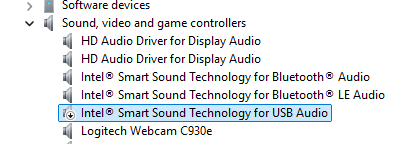
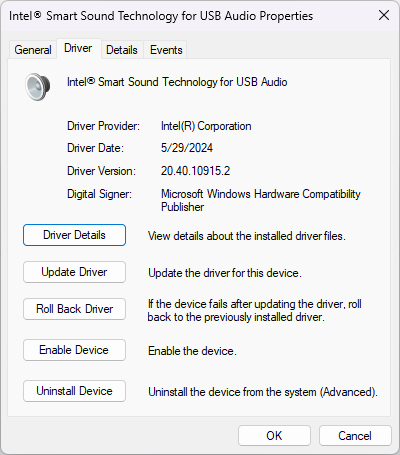
Well, a small update. I logged in this morning and had the same issue. So, it seems as though you need to disable the 'Intel Smart Sound Technology for USB Audio' device as well in Device Manager. I had done that yesterday by itself and it did not fix the issue, so I assumed that was not the problem and I turned the device back on after getting the Mic working with the steps above. I'll keep using it the next couple of days with this disabled and see how it goes. Also here is my Hardware in case that matters for anyone. Dell Latitude 5450 - BIOS v1.12.2 Windows 11 24H2 Teams (new) - Don't think the version matters as long as it is the New Teams because I have had this issue for a while and just got back to troubleshooting yesterday.
-
[24h2 / lts 2024] YeaLink WH62 Win 11 volume forced to 0?
Str8buttah replied to Garacesh's topic in Windows 11
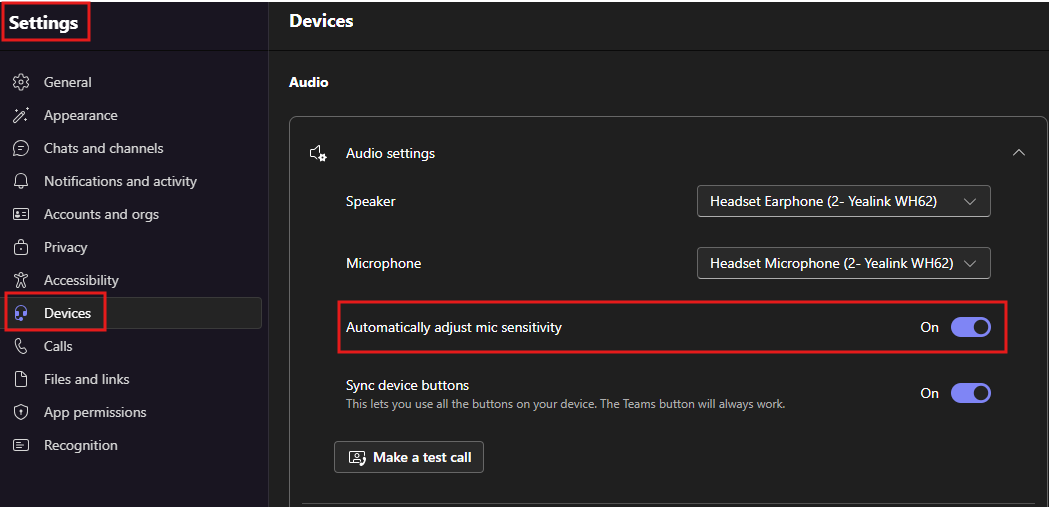
@Garacesh I was having this exact same issue with my WH62 on Windows 11. I found several items across the Interverse but nothing seemed to fix it. I wanted to come out here and provide what fixed it for me in case anyone else comes across this post and is pulling their hair out. My problem was related to the Microsoft Teams Setting under devices to automatically adjust mic sensitivity. I basically just had to turn that value off and that allowed me to adjust the Microphone Input Volume slider. Once I did that step, I was able to turn that setting back on and it continued to work as expected. Now I don't recall if that was the exact steps. There may have been some form of turn that setting off, then plug in the headset, adjust the slider, then turn it back on but I know turning that setting off adjusting the slider allowed my microphone to start working again. I know it has been sever months since you posted this and perhaps you found the solution already but if not, I hope this works.