DarylB
-
Posts
10 -
Joined
-
Last visited
About DarylB

-
OK Nick thanks again for all your help.
-
c:\winnt\microsoft.net\framework\v4.0.30319\aspnet_isapi.dll

-
Sorry Nick not sure what your asking for?!?
-
c:\winnt\microsoft.net\framework\v4.0.30319\aspnet_isapi.dll
-
https://localhost/hap/api/setup - on the server https://folders.rgs.newcastle.sch.uk/hap/api/test - on my desktop
-
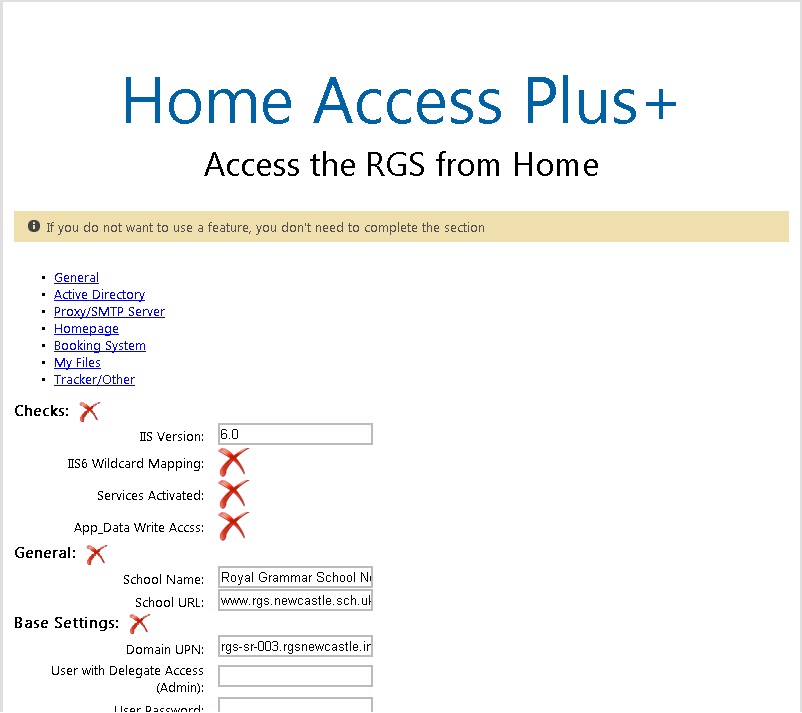
Hey Nick, No that's image is taken from IE 8 the server HAP is installed on. If I go from my desktop using IE9 or Chrome I get this Sorry for the miss-communication As our last instruction, if I use my desktop PC I get "The system cannot find the path specified." If I go to the Server its installed on I get page cannot be displayed both using localhost or the url.
-
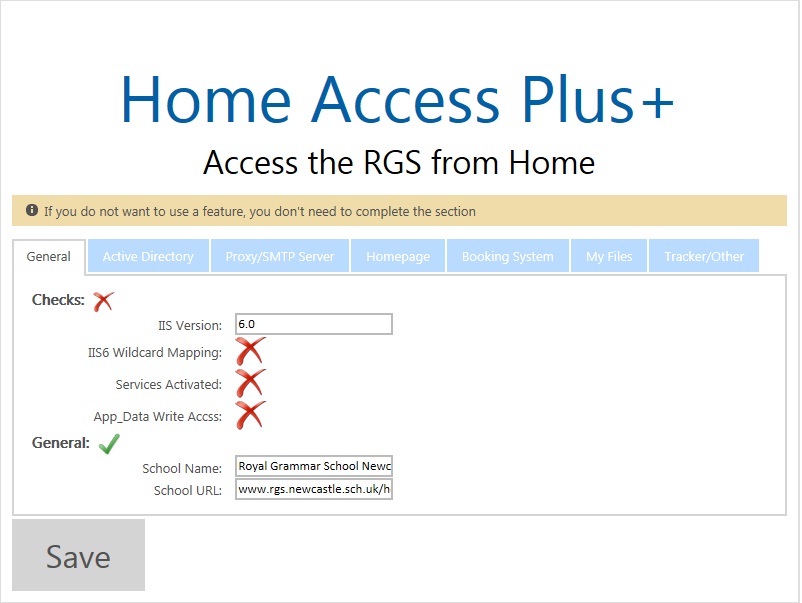
Hi Nick, Thanks for your help, I've tried Chrome and IE9 on my desktop and get the same results, seems to display correctly but all the checks are big red X's and the tabs dont work.
-
IE8 on the server its setup on, if I go onto my desk top PC it displays fine..... but that leads me on to my other issues that I am getting the red X's IIS6 Wildcard Mapping: Services Activated: App_Data Write Accss: I've read another post you answered to someone having the same problem but with HAP7 and went throught the step you noted 29. Right Click on Extranet and click properties 30. Click the create button next to Application name: 31. Select “extranet” (App Pool from 13) as the application pool 32. Click the ASP.net Tab 33. Change ASP.net Version to v4.x.x 34. Click Apply 35. Click Yes on the Confirm Box Version 6+ Documentation Updated 16/04/2011 4:39:00 PM 36. Wait… 37. Click on Directory 38. Click the Configuration Button 39. Double Click on the .ascx Application Extension 40. Copy the Executable path 41. Click OK 42. Click Insert… under wildcard application maps 43. Paste the Path from 41 44. Deselect Verify that file exists 45. Click OK 46. Click OK 47. Under Documents 48. Remove all from the default documents 49. Add “Default.aspx” but still no joy, also I can't access the tabs across the setup page like Active Directory, Proxy/SMTP.... when you click on them there unresponsive, not sure if its all related.
-
Cheers Nick, I removed this line : But still the same pal.
-
Hi, I really am at a loss here, I have installed HAP+ 9.0 on a win server 2003 with IIS 6. I've gone through the setup docs and youtube vid for HAP+ 8 (can't find one for 9). Anyways I've got to the point of the setup up screen of installing HAP and this is how far I get. I've gone overthe doc's and youtube vid god knows how many times and been over and over this forumto see in anyone else had the same issues which I've found a couple of andtried those fixes, but unfortunately if does sort my issues out. I am not really a programmer/developer so please be gentle and patient. The last time I had anything to do with HAP was version 4, its clearly moved on a hell of a lot since then. Thanks