

Kubuntu Files: Audio Woes Ahoy!

I've always had a soft spot for KDE, so when switching to Ubuntu on my primary home machine it was a no brainer to pick Kubuntu 12.10 over it's Unity-packing parent distro. So far the system has set itself up extremely quickly and given virtually no problems at all beyond a mouse cursor that refuses to stick to the style I tell it to, irritating but hardly a deal breaker. Given the last time I installed Ubuntu I was left seekign network drivers and spending hours getting a laptop to even start this came as a pleasant surprise.
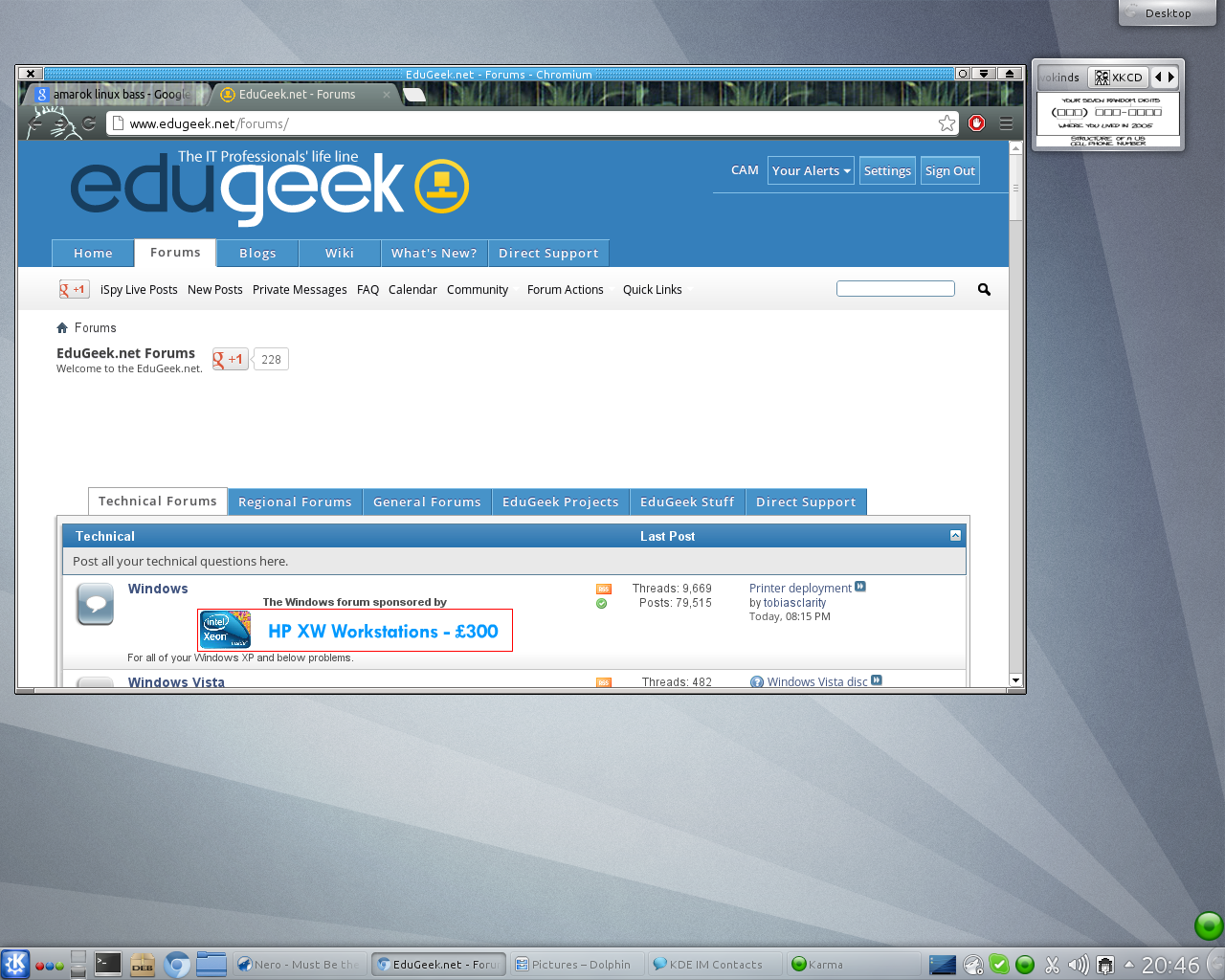
Needless to say the Audio system on the other hand decided to stick to tradition and be nothing short of a stubborn pain in the audio jack. I have had to make a few tweaks here and there to get it to behave.
1) Crackling Audio
Pulseaudio ranks as one of my most hated pieces of software in the computing world. It sits up there with Adobe Flash and practically half of the catalogue of education software on the market, but this is a critical part of Kubuntu's audio system. Interestingly, it turns out Pulseaudio uses a Time Scheduling system instead of Interrupts (IRQs) and when combined with Skype, this made for an unpleasant experience.
Google to the rescue then, a quick check reveals a bug report on Launchpad revealing how to disable Time Scheduling and force Pulseaudio to use Interrupts instead: https://bugs.launchpad.net/ubuntu/+source/pulseaudio/+bug/751265/comments/23
2) Distorted Bass
Once the crackling audio was fixed, firing up Amarok was causing bass heavy music to distort terribly. This solution luckily doesn't require delving into the console. Click on the speaker icon in bottom right, select playback streams and turn the volume down to around 3/4. Do the same for the Master Volume and the distortion should disappear.
3) Preferred Device
If like me you prefer voice comms to go through your headset, then you can set a preferred device in Kubuntu so when it is plugged in, sound goes through the headset. To do this, open the Mixer again used in Step 2 and choose Settings then Audio Settings. Find communication under playback settings and place your headset higher in the list. Save the changes and the headset will now override the speakers for VOIP programs. Remember to do the same for your Microphone, even if it is the only input device on the system!
Here's hoping Linux lasts this time. Given the recent Ubuntu realignment and their dropping of official support for Kubuntu, I only hope I still have a distro to get updates for in the near future!
3 Comments
Recommended Comments
Create an account or sign in to comment
You need to be a member in order to leave a comment
Create an account
Sign up for a new account in our community. It's easy!
Register a new accountSign in
Already have an account? Sign in here.
Sign In Now